 Web HostingMost affordable shared hosting from TZS 9,100 per year
 Dedicated ServersExperience unmatched power and control with a physical server in Tanzania.
 WordPress HostingHigh-Speed, Tanzania-Optimized WordPress Hosting
 Windows HostingOptimized for Windows-based applications and websites
 cPanel HostingUser-friendly hosting powered by cPanel
 Email HostingProfessional Tanzanian email hosting for your .co.tz domain (Secure, reliable, and Swahili-supported)
 Reseller HostingLaunch your own hosting business with minimal technical requirements
 Affiliate ProgramEarn referral commissions by promoting our services
 DomainsFind and register available domain names in seconds
 Domain TransferMove your domain to us with zero downtime and full control
 .co.tzSecure the trusted .co.tz domain made for Tanzanian businesses.
 .tz DomainClaim the official .tz domain for national trust and recognition.
 .com DomainSecure the trusted .com domain for Tanzanian businesses.
 Supported Tlds (glTLDs and ccTLDs)Browse and register domain extensions from around the world
 Whois Lookup | Find Out Who Owns a DomainLook up domain ownership, expiry dates, and registrar information
 VPS
VPS VPS Hosting TanzaniaDedicated resources. Tanzanian performance. Full server control.
 Managed VPS TanzaniaNot a tech expert? Choose a managed Tanzania VPS.
 Website BuilderEasily build beautiful websites with drag-and-drop simplicity.
 Online ShopLaunch a professional e-commerce store without writing code.
 BlogFind latest business, marketing, and tutorials
You just provisioned a VPS. You want OpenClaw installed and connected to WhatsApp today.
You SSH in and run the one-line installer. It pulls packages for five minutes, then asks questions you were not prepared for.
Which AI provider? Which model? What is your gateway token? You guess, finish the setup, and nothing responds when you message the bot.
You have a running VPS and a complete installation, but no working AI assistant.
The gap between “installed” and “actually working” is nowhere to be found in the documentation.
This guide takes you from a blank Ubuntu VPS to a fully working OpenClaw instance, connected to WhatsApp or Telegram, with every configuration decision explained so you are not guessing at any step.
Minimum Requirements Before You Touch a Single Command
1) VPS Server Specs
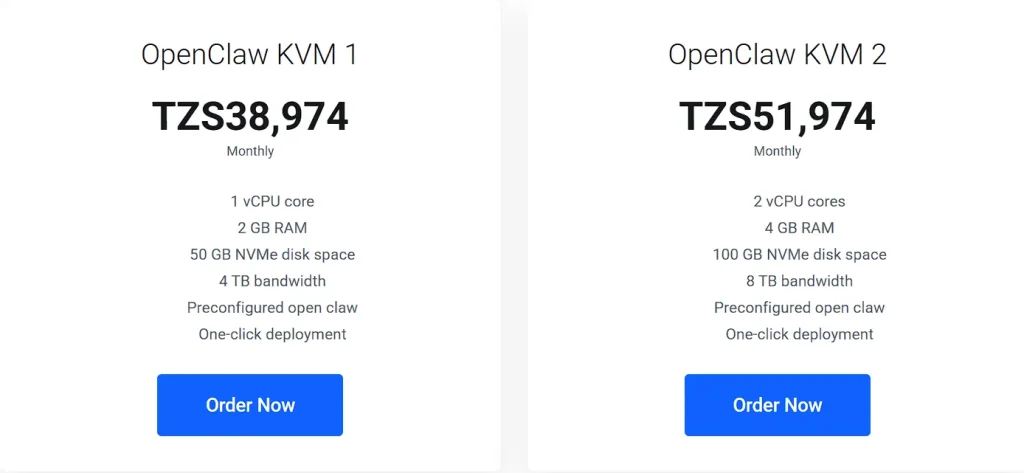
OpenClaw requires at least 2GB of RAM and Node.js version 22 or higher.
Ubuntu 22.04 LTS is the recommended operating system. It is the most tested and documented OS for OpenClaw installations.
For reliable performance across multiple messaging channels, aim for at least 2 vCPU and 20GB SSD storage.
If you plan to run WhatsApp and Telegram simultaneously, 4GB of RAM is a safer target. Going below the minimum spec causes the process to crash under load.
2) API Keys You Need Before You Start
You need an API key from at least one AI provider. Your three main options are Anthropic (Claude), OpenAI, and Google Gemini.
Create your Anthropic key at console.anthropic.com. Create your OpenAI key at platform.openai.com.
OpenClaw itself is free and open source. But you pay for API calls to your chosen provider.
Anthropic charges on a pay-per-use basis, with no monthly subscription fee for API access.
Light usage typically costs between $3 and $10 per month. That converts to roughly TZS 7,500 to TZS 25,000 per month at current exchange rates.
3) Messaging App Requirements
Telegram setup is simpler. You create a bot through Telegram’s @BotFather, copy the token, and paste it during the OpenClaw onboarding process. The whole process takes about five minutes.
WhatsApp setup requires scanning a QR code. OpenClaw generates the code, and you scan it with your phone.
The connection is stable but requires a strong internet connection during scanning.
In Tanzania, WhatsApp is far more widely used than Telegram for business communication.
So the WhatsApp integration path is more practically relevant for most Tanzanian users.
Step 1: Provisioning Your VPS and Connecting
Go to truehost and select an OpenClaw Hosting plan. Complete payment via M-Pesa or Airtel Money.
After payment, your Truehost dashboard shows your server IP address and root credentials. These credentials are what you use to connect via SSH.
To connect to the VPS, type the following command into your terminal and run:
ssh root@YOUR_VPS_IPReplace YOUR_VPS_IP with the actual IP address from your Truehost dashboard.
Running OpenClaw as the root user is a security risk. A dedicated system user limits damage if something goes wrong during setup. Run these two commands to create a safe user:
adduser openclaw
usermod -aG sudo openclaw
Then switch to that user with:
su - openclawStep 2: Installing OpenClaw
OpenClaw provides an official installer script. Run it with:
curl -fsSL https://openclaw.ai/install.sh | bashThe script automatically downloads OpenClaw and all required dependencies.
It then launches the onboarding process. Depending on your server’s current state, the install takes 10-30 minutes.
On a fresh Ubuntu VPS, it typically finishes in around 15 minutes.
Step 3: Configure The Onboarding Process
Once installation completes, an interactive onboarding wizard starts. It walks you through each configuration step in order. Here is what each screen asks:
- Select onboarding method: choose Quickstart. This guides you through each step clearly without manual adjustments.
- Select AI provider: choose Anthropic, OpenAI, or Gemini. Anthropic Claude gives the best conversational results overall.
- Enter your API key: paste the key you created at your provider’s console.
- Select a model: for Anthropic, claude-sonnet-4-20250514 offers a solid cost-to-quality balance.
- Select a messaging channel: choose WhatsApp or Telegram based on your preference and usage patterns.
Step 4: Connecting WhatsApp on OpenClaw
After onboarding, start the OpenClaw gateway to activate WhatsApp. The terminal displays a QR code. Open WhatsApp on your phone.
Go to Settings > Linked Devices > Link a Device. Scan the QR code within 30 seconds.
Once scanned, WhatsApp confirms the connection, and your OpenClaw instance becomes active.
Keep your Gateway Token private at all times. Do not paste it into chat groups, shared documents, or code repositories.
If the QR code expires before you scan it, re-run the OpenCLAW gateway. A new code is generated immediately.
Step 5: Setting Up Telegram on OpenClaw
Open Telegram on your phone. Search for @BotFather and start a conversation. Send the command /newbot.
Follow the prompts to name your bot. BotFather gives you a bot token at the end.
Paste this token when OpenClaw asks for your Telegram bot token during onboarding.
After that, your Telegram bot becomes the interface for all AI interactions.
Telegram tends to hold a more stable connection than WhatsApp on intermittent mobile data.
Consider setting it up as a backup channel even if WhatsApp is your primary.
Step 6: Keeping OpenClaw Running After a VPS Reboot
Run this command to register OpenClaw as a background service that starts automatically:
openclaw onboard --install-daemonThis configures OpenClaw to restart automatically whenever your VPS reboots.
A daemon is a background process that the operating system manages directly. You do not need to start it manually after a reboot. Verify it is running with:
systemctl status openclawThe output should show “active (running)”. If it shows “inactive” or “failed”, check the journal logs with: journalctl -u openclaw -n 50.
Step 7: Securing Your OpenClaw VPS in Tanzania
OpenClaw stores all configuration files locally on your VPS. The config lives in ~/.openclaw/.
Your memory and workspace files stay on the server as well. Nothing is sent to external servers except the API calls to your AI provider.
Restrict access to the config folder with:
chmod 700 ~/.openclawNever share your API keys in WhatsApp groups, Telegram channels, or GitHub repositories.
A leaked API key can result in large, unexpected charges on your AI provider account.
Troubleshooting Common OpenClaw Errors
1) “openclaw: command not found” After Installation
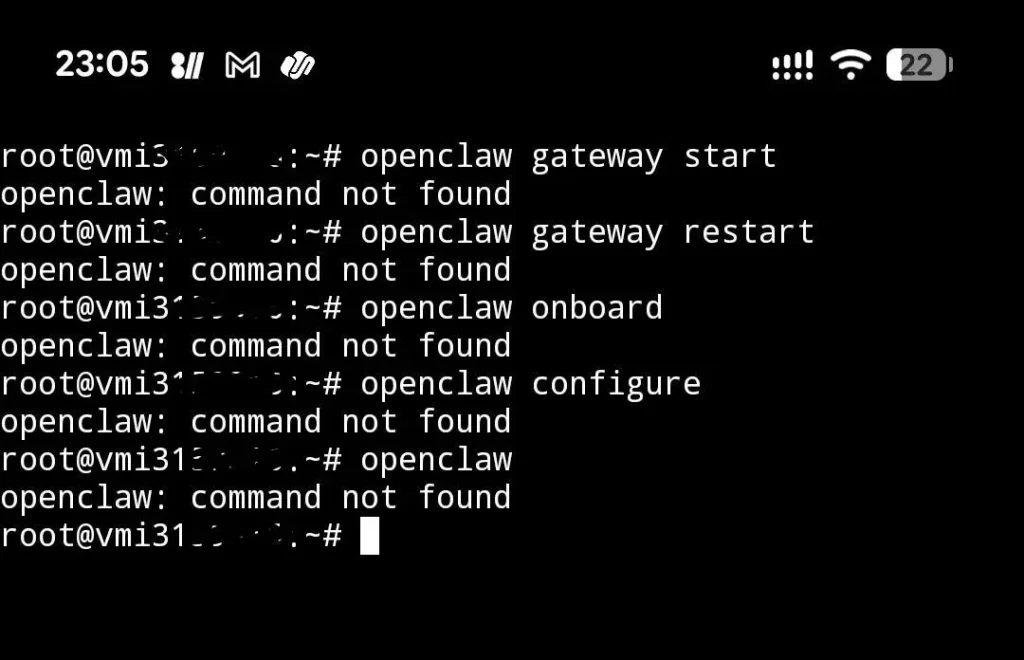
This error means the binary path is not registered in your current shell session.
The fix is to manually export the PATH. Check the OpenClaw documentation for the exact command matching your shell. After running it, test with:
openclaw --versionYou should see a version number like 2026.x.x. If the command works, you are good to proceed.
2) The Setup Keeps on Timing Out
Some VPS configurations do not fully support systemd user sessions. In that case, use the screen as a fallback. Run:
screen -S openclaw openclaw gatewayPress Ctrl+A, then D to detach from the session. OpenClaw continues running in the background. To return to the session later, run:
screen -rd openclaw1) WhatsApp QR Code Won’t Load or Keeps Expiring
This usually happens on slow connections. The QR generation process times out before it renders fully. Re-run the OpenCLAW gateway to get a fresh code.
Have your phone ready before running the command. Scan within 30 seconds of the code appearing on screen.
3) OpenClaw Not Responding to Messages
Start by checking if the gateway is active first:
openclaw statusIf it is stopped, restart it with the OpenCLAW gateway. Next, check your API account balance.
A depleted Anthropic or OpenAI account balance causes silent failures.
The AI stops replying without any visible error message. Log in to your provider console and confirm you have credit remaining.
Finally, check your VPS RAM usage:
free -mIf RAM usage exceeds 90%, the OS may kill the OpenClaw process to free memory.
This happens on the Budget plan under heavy load. Upgrading to a plan with more RAM solves the issue cleanly.
Frequently Asked Questions
What are the minimum server requirements to run OpenClaw?
OpenClaw needs at least 2GB of RAM and Node.js version 22 or higher.
Ubuntu 22.04 LTS is the recommended OS. A 2 vCPU, 20GB SSD plan covers the minimum spec.
Add more RAM if you plan to run multiple channels simultaneously.
Can I use OpenClaw with WhatsApp in Tanzania?
Yes. OpenClaw connects to WhatsApp via a QR code gateway. Use a stable WiFi connection during the pairing step.
The connection remains active after successful pairing and survives VPS reboots if the daemon is installed.
How much does it cost to run OpenClaw on a VPS in Tanzania per month?
VPS hosting starts at around TZS 33,800 per month on Truehost.
AI API costs range from $3 to $10 per month for light usage.
OpenClaw itself is free and open source. The total monthly cost for a typical setup ranges from TZS 40,000 to TZS 85,000.
Does OpenClaw send my data to third parties?
Your data lives on your VPS. Only API calls leave the server to reach your chosen AI provider. No other data is transmitted externally.
Your conversations, memory files, and configuration all stay on the server you control.
What happens to my OpenClaw instance if the VPS restarts?
If you installed the daemon using openclaw onboard –install-daemon, OpenClaw restarts automatically after a reboot.
If you used only the screen method, you need to restart the gateway manually after the server comes back up.
Start Your Automation Journey With OpenClaw Today
Ready to get your OpenClaw instance running? Start by picking a Truehost VPS plan at Truehost.
Get your Anthropic, OpenAI, XAI, or Google Gemini API key ready before you SSH in. The whole setup takes under 30 minutes on a fresh Ubuntu server.