 Web HostingMost affordable shared hosting from TZS 9,100 per year
 Dedicated ServersExperience unmatched power and control with a physical server in Tanzania.
 WordPress HostingHigh-Speed, Tanzania-Optimized WordPress Hosting
 Windows HostingOptimized for Windows-based applications and websites
 cPanel HostingUser-friendly hosting powered by cPanel
 Email HostingProfessional Tanzanian email hosting for your .co.tz domain (Secure, reliable, and Swahili-supported)
 Reseller HostingLaunch your own hosting business with minimal technical requirements
 Affiliate ProgramEarn referral commissions by promoting our services
 DomainsFind and register available domain names in seconds
 Domain TransferMove your domain to us with zero downtime and full control
 .co.tzSecure the trusted .co.tz domain made for Tanzanian businesses.
 .tz DomainClaim the official .tz domain for national trust and recognition.
 .com DomainSecure the trusted .com domain for Tanzanian businesses.
 Supported Tlds (glTLDs and ccTLDs)Browse and register domain extensions from around the world
 Whois Lookup | Find Out Who Owns a DomainLook up domain ownership, expiry dates, and registrar information
 VPS
VPS VPS Hosting TanzaniaDedicated resources. Tanzanian performance. Full server control.
 Managed VPS TanzaniaNot a tech expert? Choose a managed Tanzania VPS.
 Website BuilderEasily build beautiful websites with drag-and-drop simplicity.
 Online ShopLaunch a professional e-commerce store without writing code.
 BlogFind latest business, marketing, and tutorials
Being locked out of your own website is one of the most frustrating feelings in web management.
In Tanzania, slow connections and shared hosting plans turn a simple WordPress login into a daily battle.
This guide walks you through finding your WordPress login URL fast. It also shows you why WordPress keeps kicking you out.
By the end, you will know exactly how to stay signed in, even on a shaky connection.
What the WordPress Login URL Actually Is
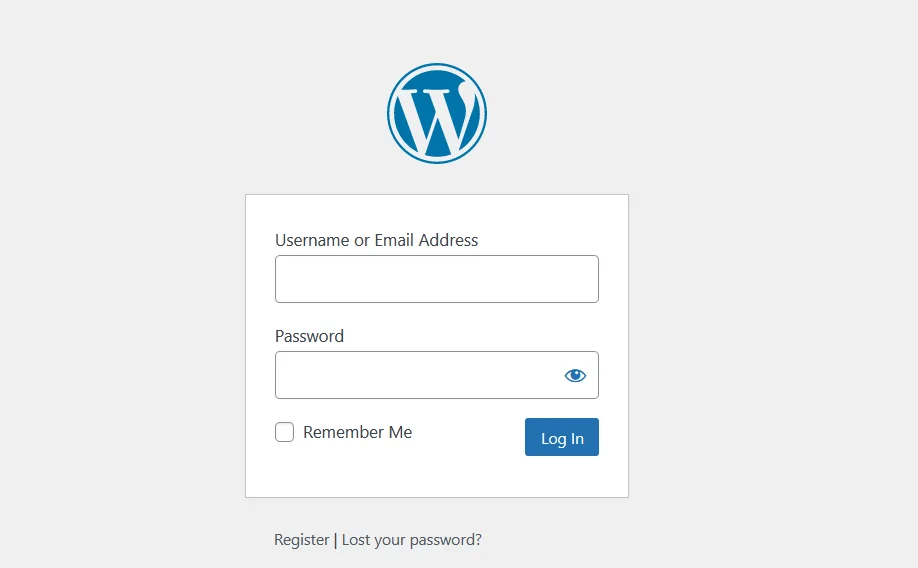
To access your site’s back end, you need a specific web address. That address is your WordPress login URL. Think of it as the front door to your entire website.
When you install WordPress, the system automatically creates a login file. That file is called wp-login.php.
Every time you type your login address, WordPress reads that file. From there, it checks your username and password before letting you in.
Most hosting providers in Tanzania use cPanel control panels. These panels sometimes label your login link differently.
You might see it called “WP Admin” or “Admin Panel.” The URL behind that button is still your standard WordPress login address.
The Default WordPress Login URL: Three Ways to Access It
There are three main ways to find your WordPress login URL, with varying complexity depending on your WordPress installation.
Method 1: The Direct URL Approach
Open your browser and type your website address. After your domain, add /wp-login.php.
For example, if your site is mysite.co.tz, go to mysite.co.tz/wp-login.php. That path takes you straight to the login screen.
You can also try /wp-admin/ at the end of your address. So mysite.co.tz/wp-admin/ works just as well.
If you are already logged in, this path redirects you directly to your dashboard. If you are not, it sends you to the login page first.
Two other paths sometimes work as well: /login/ and /admin/. Not every WordPress site responds to those two. Try them only if /wp-login.php and /wp-admin/ both fail for your site.
Method 2: Access via Your Tanzania Hosting Dashboard
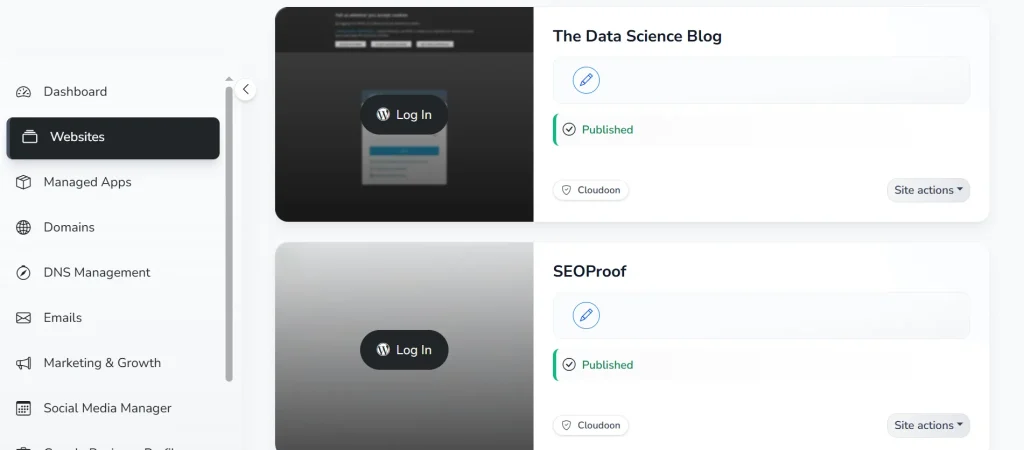
Most hosting providers in Tanzania make login access much easier. They add a direct shortcut inside your hosting control panel. You do not need to type any domain name.
Log in to your hosting account first. Look for a section labeled “Websites” or “My Sites.”
Find your domain name and look for a button that says “WordPress Admin” or “WP Admin.” Clicking that button logs you in without having to re-enter your password.
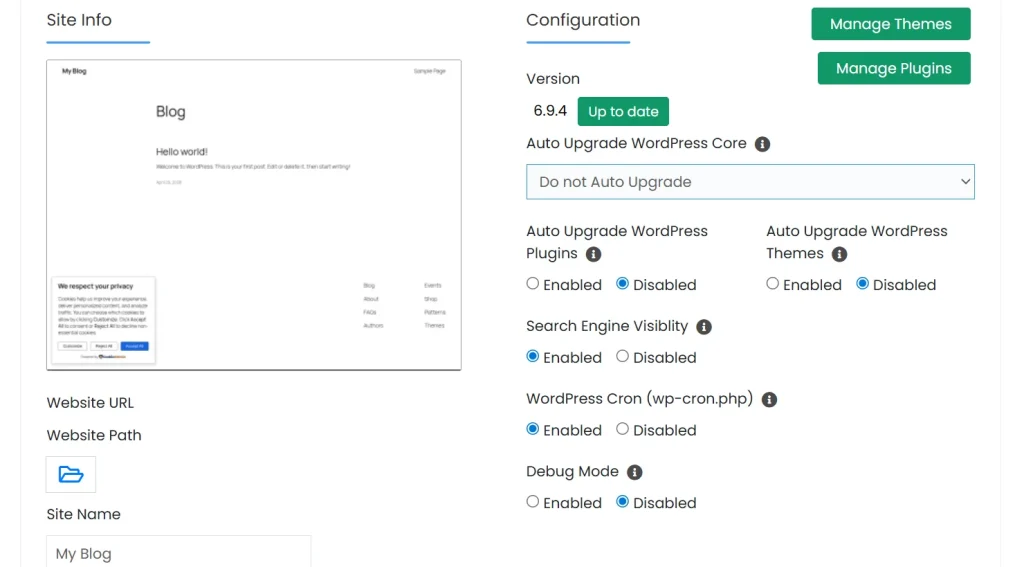
Many Tanzanian resellers use Softaculous. Go to the WordPress section, find your installation, and click the admin icon. The system handles the authentication automatically.
Method 3: Recover a Lost or Changed Login URL via FTP
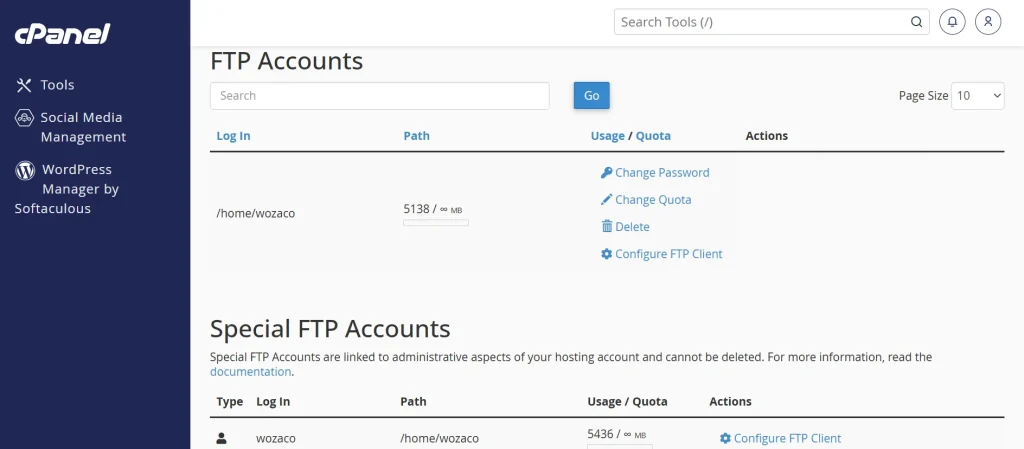
Sometimes a security plugin changes your WordPress login URL. If you forget the new address, you can recover it using FTP.
FTP stands for File Transfer Protocol. It lets you access your website files directly from your computer.
First, get your FTP credentials from your hosting account. You need a username, a password, and a server address.
Then download FileZilla for free from filezilla-project.org. It works well even on slower connections common in Tanzania.
Connect to your server through FileZilla. Navigate to your WordPress root folder. That folder is often named public_html or www.
Inside that folder, find the file called wp-login.php. Open it in any text editor and search for the word site_url. That line reveals your current login address.
Why WordPress Keeps Logging You Out
In Tanzania, session dropouts are more common due to infrastructure challenges.
The reasons below explain exactly what is happening and how to stop it.
The URL Mismatch Problem
WordPress creates a cookie when you log in successfully. That cookie stores your session.
The cookie is tied to the URL saved in your WordPress settings. If the stored URL and your actual URL do not match, WordPress rejects the cookie.
The result is that you get logged out immediately after signing in. Go to your WordPress dashboard and click Settings, then General.
You will see two fields: WordPress Address (URL) and Site Address (URL). Both fields must show the exact same address.
A URL mismatch happens often in Tanzania when users add SSL certificates after the initial site setup.
Before SSL, the address starts with http://. After SSL, it changes to https://. If only one field updates and the other stays as http://, you get constant logouts.
The Cookie Problem on Slow or Mobile Connections
WordPress stores a small file on your device to prove you are logged in.
On a slow or unstable connection, that file sometimes fails to save correctly. When it does not save properly, WordPress treats you as a brand-new visitor.
This is a very common experience in Tanzania, where mobile data speeds can vary a lot.
Your connection might be strong one minute and then drop the next.
WordPress reads that interruption as a session failure and signs you out.
Caching plugins make this problem worse in a specific way. Some caching plugins save a snapshot of your login page.
That snapshot contains an old security token called a nonce. WordPress rejects old nonces and logs you out immediately.
Fix this by disabling caching for login pages in your caching plugin settings.
In W3 Total Cache, go to Browser Cache settings and exclude wp-login.php.
In WP Super Cache, use the “Don’t cache these pages” field. Add /wp-login.php and /wp-admin/ to that exclusion list.
The Server-Side Session Problem on Shared Hosting
Shared hosting plans are popular in Tanzania for budget reasons. On shared hosting, many websites share the same server memory and processing power.
When other sites on the server get busy, your site gets less available memory. That shortage can interrupt your login session without warning.
You can increase WordPress’s memory allocation in your wp-config.php file.
Open that file using FileZilla or your hosting file manager. Look for the line that says “That’s all, stop editing!” Add this line just above it:
define('WP_MEMORY_LIMIT', '256M');Save the file and log back in to your dashboard. This gives WordPress more room to maintain your session.
If logouts continue, contact your hosting provider. You may need to upgrade to a VPS plan with more dedicated resources.
How to Stay Signed In to WordPress
1) Use the “Remember Me” Checkbox the Right Way
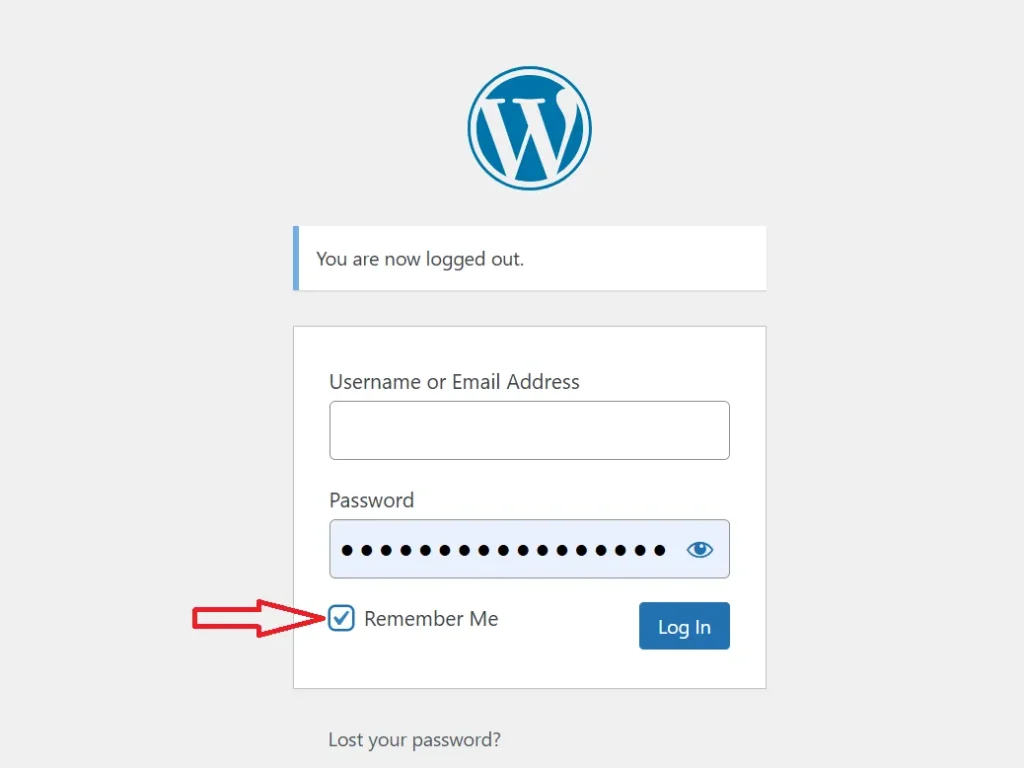
The WordPress login page has a small checkbox labeled “Remember Me.” Check that box before you click the Log In button.
WordPress then keeps you signed in for 14 days. You do not need to enter your password again during that entire period.
Clearing your browser history wipes this setting instantly. Chrome on Android is the most used browser in Tanzania.
By default, Chrome on Android does not clear cookies when you close the app. So your session stays safe unless you manually clear your browsing data.
Extend Your WordPress Session Duration (Code Method)
The default 14-day session is sometimes too short. You can extend it by adding a small code snippet to your theme.
Go to Appearance > Theme File Editor in your WordPress dashboard.
Open the functions.php file. Paste the following code at the very bottom of the file:
add_filter( 'auth_cookie_expiration', 'extend_login_cookie' );
function extend_login_cookie( $expirein ) {
    return 2592000; // 30 days in seconds
}
Save the file. Your sessions now last 30 days instead of 14. You can change 2592000 to any number of seconds you prefer. For 60 days, use 5184000 instead.
Securing Your WordPress Login Page in Tanzania
I) Limit Login Attempts
Brute-force attacks work by automatically trying thousands of username and password combinations.
Scripts run these attempts around the clock without human involvement. Limiting login attempts effectively stops this type of attack.
Install the WordFence plugin from the WordPress plugin directory. Go to its dashboard and in the login security panel, set the allowed login attempts to 5 before triggering a lockout.
II) Add Two-Factor Authentication (2FA)
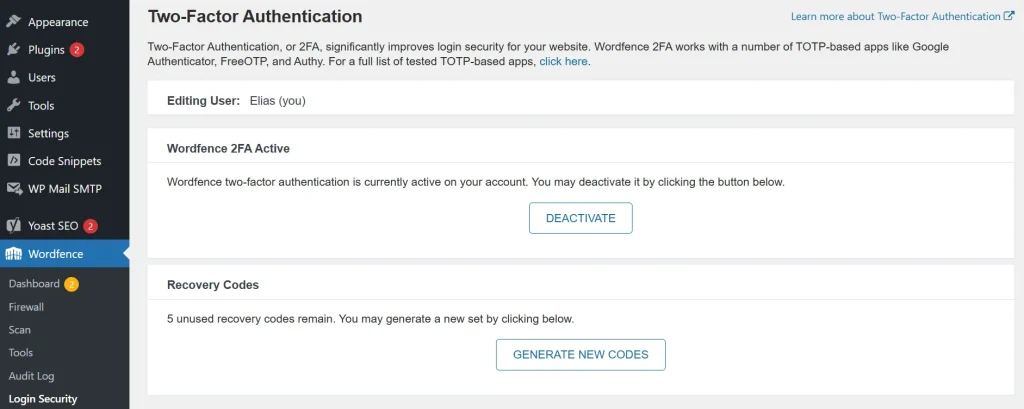
Two-factor authentication adds a second step to your login process. After entering your password, you also enter a short numeric code.
That code comes from an app on your phone. Even if someone steals your password, they cannot log in without the fresh code.
You can use the WordFence plugin to set up 2FA and link the Google Authenticator app on Android to generate codes even when the phone is offline.
III) Use Strong Passwords and WordPress Security Keys
WordPress mixes secret codes called auth keys and salts into your cookies.
These secret codes make your session cookies impossible to copy or forge. You can regenerate them anytime by visiting: api.wordpress.org/secret-key/1.1/salt/
Copy the new keys from that page. Open your wp-config.php file and replace the existing key block with the new one. Save the file.
This action logs out every active session on your site immediately, including your own. Log back in to resume with a fresh, secure session.
For passwords, use a password manager rather than saving them in your browser.
Frequently Asked Questions
What is the WordPress login URL for my site?
Your login URL is your domain name followed by /wp-login.php. For a Tanzanian site, that looks like mysite.co.tz/wp-login.php. You can also try /wp-admin/ as a second option.
Why does WordPress say “session expired” even after I just logged in?
This usually means your caching plugin saved an old security token on your login page. Disable caching for the login page in your caching plugin settings. After clearing the old cache, log in again, and the error disappears.
How long does WordPress keep me logged in with “Remember Me” checked?
WordPress keeps you signed in for 14 days when “Remember Me” is enabled. Clearing your browser cookies ends the session early, regardless of that time window. Use the code method or a plugin to extend this to 30 days or longer.
Can I access my WordPress dashboard from my phone in Tanzania?
Yes, you can. Open Chrome on your Android device and type yoursite.co.tz/wp-admin/. Log in and check the “Remember Me” box.
Is it safe to stay logged in to WordPress all the time?
On a personal device with a screen lock enabled, staying logged in is safe and convenient. On a public device, such as a computer at an internet cafe, it is not safe. Always log out manually on any device that others can access.
Final Thoughts
Finding your WordPress login URL takes less than a minute once you know the three methods.
Staying logged in takes one more step: checking the “Remember Me” box and keeping your WordPress Address settings consistent.
After all, running a website in Tanzania already takes patience and creativity. Your login page should not be the thing slowing you down.