 Web HostingMost affordable shared hosting from TZS 9,100 per year
 Dedicated ServersExperience unmatched power and control with a physical server in Tanzania.
 WordPress HostingHigh-Speed, Tanzania-Optimized WordPress Hosting
 Windows HostingOptimized for Windows-based applications and websites
 cPanel HostingUser-friendly hosting powered by cPanel
 Email HostingProfessional Tanzanian email hosting for your .co.tz domain (Secure, reliable, and Swahili-supported)
 Reseller HostingLaunch your own hosting business with minimal technical requirements
 Affiliate ProgramEarn referral commissions by promoting our services
 DomainsFind and register available domain names in seconds
 Domain TransferMove your domain to us with zero downtime and full control
 .co.tzSecure the trusted .co.tz domain made for Tanzanian businesses.
 .tz DomainClaim the official .tz domain for national trust and recognition.
 .com DomainSecure the trusted .com domain for Tanzanian businesses.
 Supported Tlds (glTLDs and ccTLDs)Browse and register domain extensions from around the world
 Whois Lookup | Find Out Who Owns a DomainLook up domain ownership, expiry dates, and registrar information
 VPS
VPS VPS Hosting TanzaniaDedicated resources. Tanzanian performance. Full server control.
 Managed VPS TanzaniaNot a tech expert? Choose a managed Tanzania VPS.
 Website BuilderEasily build beautiful websites with drag-and-drop simplicity.
 Online ShopLaunch a professional e-commerce store without writing code.
 BlogFind latest business, marketing, and tutorials
 Contact UsContact Truehost TZ | 24/7 Web Hosting Support
Setting up a VPS can feel intimidating the first time you try it.
You hear things like SSH, root access, or command line, and suddenly, it feels like you need a computer science degree to host a simple website.
But here’s the truth that many guides never tell beginners in Tanzania:
You don’t need the command line to set up a VPS. Not when better, faster, and easier visual tools exist today.
In this guide, I’ll walk you through the simplest and quickest way to set up VPS hosting step-by-step using a beginner-friendly dashboard.
No advanced Linux commands. No technical overwhelm. Just a clean, practical path you can follow, even if this is your first time touching a server.
Let’s get started.
What You Need to Set Up a VPS Server
Before you dive into the setup, make sure you have these ready. It keeps everything smooth, especially when dealing with domains and DNS:
- A VPS hosting plan (Use these Truehost deals to get one)
- A domain name
- Your VPS login details (usually sent to your email)
- A stable internet connection
- 10–15 minutes of quiet time
That’s it. Nothing complicated.
And now, let’s walk through the process from start to finish.
How to Set Up VPS Hosting Step by Step
Alright, here’s the part most beginners worry about.
But don’t!
Setting up VPS hosting is surprisingly easy when you follow a clear, guided path. Let’s break it down step by step.
1) Purchase a VPS Hosting plan
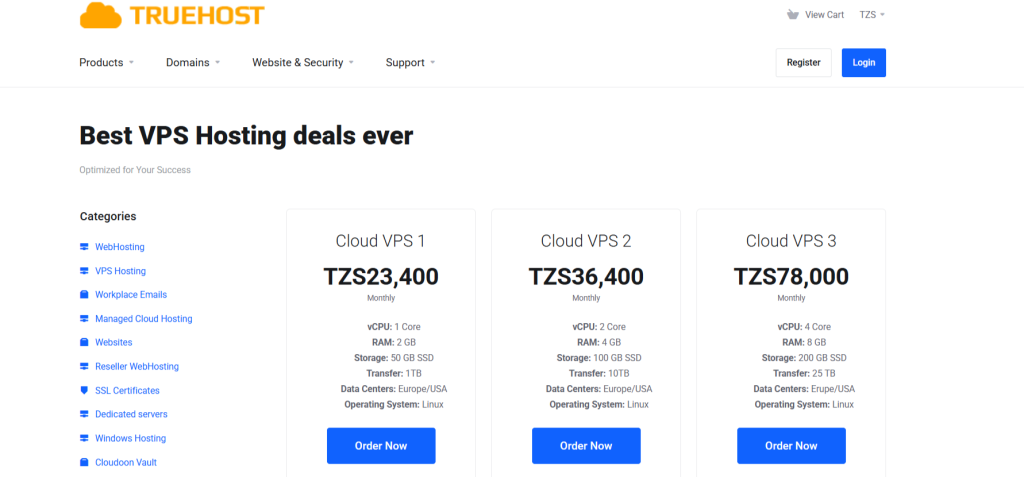
This is the first step to getting your VPS ready, and the plan you pick now will shape everything else.
So, when choosing, think about what you want to do.
How many websites will you host? How much traffic do you expect? Will you run WordPress, a custom app, or multiple platforms?
Also, you need to know that there’s managed and unmanaged VPS hosting.
And here’s a tip:
If you’re just starting, go for a managed VPS plan. Managed VPS means we handle server updates, security, and maintenance for you.
On the other hand, an unmanaged VPS gives full control, but you’ll need to configure everything yourself. So, for beginners in Tanzania, managed is the safest, fastest way to get online.
Nevertheless, different VPS hosting providers offer different VPS plans.
At Truehost, we offer flexible options that fit any need without overpaying.
For instance, our basic plan is enough if you need to launch a small business website. But if you plan multiple sites or heavier apps, pick one with more CPU, RAM, and storage.
Either way, after purchase, you’ll get an email with your VPS details. Keep these safe as they’re key to the next steps.
Typically, you’ll receive:
- Server IP address
- Username
- Password
- Panel access link (if a control panel is pre-installed)
With these, you’re ready to proceed to the next step.
2) Log In to Your VPS Dashboard
Most beginners think that setting up a VPS starts with complicated SSH root commands.
Not today.
You’re taking the easy route using a visual dashboard. No need to memorize commands or worry about breaking your server.
To log in, use the link your VPS email provided. It could be something like:
- https://your-server-ip:2087 (cPanel/WHM)
- https://your-server-ip:8090 (CyberPanel)
- Or the cloud dashboard from your hosting provider
Enter your username and password received from the email, and just like that, you’re inside.
This dashboard is now your command center.
Everything you do, from installing software, securing the server to adding your website, will happen here.
3) Choose and Install Your Control Panel
Here’s some good news for beginners in Tanzania.
If you picked a managed VPS with Truehost, you don’t need to worry about this step. Most of our managed VPS plans already come with cPanel pre-installed.
That means your server is ready to go with no extra setup needed.
But if your VPS doesn’t come with a panel (maybe you picked an unmanaged VPS), you have options depending on your comfort level:
- CyberPanel: Simple, beginner-friendly, and powerful. Perfect if you’re just starting.
- cPanel/WHM: The industry standard, which is trusted by businesses worldwide.
- HestiaCP: Lightweight, easy to learn, and great for smaller sites.
- Plesk: Excellent if you plan to host multiple websites or apps.
Most of these panels can be installed directly from your VPS dashboard with a single click. No terminal. No commands. Just a few minutes, and your server is ready to host your website.
4) Secure Your VPS
Security should happen before you upload anything to your server.
Thankfully, it’s all visual.
Here are the beginner safety considerations to put in place:
- Change your default password
- Enable the firewall
- Disable root login (your panel generates safer admin accounts)
- Add two-factor authentication if available
- Regularly update your control panel
These simple steps shield your VPS from the most common attacks. And as you can see, you don’t need to understand advanced cybersecurity.
5) Add Your Domain to the VPS
This is where your website becomes real.
In your control panel:
- Go to Websites
- Click Create Website
- Enter your domain name
- Choose a PHP version
- Enable SSL if the option is available
- Click Create
Your VPS is now ready to serve your website, but you still need to connect it with your domain.
You’ll do that in the next step.
6) Configure DNS Records
DNS is the step that confuses beginners the most.
But don’t worry.
If you’ve ever typed an address in your phone’s contacts, you can do this.
You’ll open your domain settings and add two A Records:
| Host | Type | Points to |
| @ | A | Your VPS IP |
| WWW | A | Same VPS IP |
Once done, save the changes.
Your domain will now point to your VPS.
But remember, DNS propagation takes minutes to hours in Tanzania, depending on your network. So, just be patient if it doesn’t connect instantly.
7) Install Your Website App
Now comes the exciting part! Bringing your VPS to life.
Right now, it’s just a blank server. To make it work, you need to install your website app, either WordPress, a custom project, or even a static HTML site.
The good news is that most control panels, like cPanel or CyberPanel from Truehost, have one-click installers.
So, you don’t need to worry about complex commands or coding.
For WordPress:
- Go to CyberPanel > Manage Website > WordPress > LSCache
- Fill in your login details
- Click Install
Your WordPress site is ready in minutes, optimized and fast.
For custom apps:
- Upload your files via the File Manager
- Create a database if the app needs one
- Follow the app’s setup instructions
For static sites:
- Simply upload your HTML files to the public_html folder
- Your site goes live immediately
By the end of this step, your VPS is no longer empty. Rather, it’s a working website ready to serve visitors in Tanzania or anywhere in the world.
8) Set Up Free SSL/HTTPS
Did you know visitors to your site notice security instantly?
In other words, a site without HTTPS raises red flags, and browsers warn users before they even see your content.
Not ideal for building trust, right?
The part is that SSL is free, and with Truehost managed VPS, it’s already set up for you. So, your website gets that green padlock automatically, meaning you don’t have to lift a finger.
However, if you went with an unmanaged VPS, don’t worry. You can still secure your site in minutes.
Most control panels, like CyberPanel, make it simple:
- Go to CyberPanel > SSL > Issue SSL
- Click Issue, and within seconds, your site is HTTPS-ready
Want extra security or advanced features?
At Truehost, we offer premium SSL certificates. These reinforce protection, boost trust, and are easy to add to your VPS.
9) Create Email Accounts on the VPS
Nothing says professional like an email that matches your domain. Imagine [email protected] instead of a generic Gmail address.
That’s instant credibility for your Tanzanian clients.
With Truehost, creating email accounts is a breeze. Just head to your control panel and follow the simple steps:
- Go to Email > Create Email
- Enter your preferred address, set a strong password, and choose mailbox size
- Click Create, and you’re done
Now you can manage emails directly from your VPS, or connect them to apps like Outlook or Gmail.
10) Set Up Backups and Automated Snapshots
Mistakes happen, updates fail, plugins misbehave, or files get corrupted. And without a backup, all your hard work could disappear.
Thankfully, with Truehost managed VPS, you don’t have to stress. Backups are automatically managed from our end.
However, for an unmanaged VPS, you need to get your hands dirty. The good thing is that most control panels offer easy backup setup options right in your dashboard, such as:
- Daily backups to keep recent changes safe
- Weekly backups for longer-term security
- On-demand snapshots whenever you’re about to make big changes
- Simple restore options to roll back in seconds
11) Monitor Server Usage
Monitoring prevents downtime and keeps your website running smoothly, especially during high traffic hours in Tanzania.
That’s why a VPS gives you real-time visibility into how your website behaves. Inside your control panel, you can monitor:
- CPU usage
- RAM consumption
- Storage space
- Bandwidth
- Running processes
This helps you know when it’s time to scale up.
For example:
If CPU hits 90% daily, your website is too busy for that plan. Or, if RAM is always full, your apps need more space.
12) Optional: Add Additional Websites or Subdomains
One of the best things about a VPS is that you’re not limited to just one website.
You can host:
- Multiple domains for your business or projects
- Subdomains like blog.yourdomain.tz or shop.yourdomain.tz
- Client websites, if you’re a freelancer or agency
- Web apps, landing pages, or testing environments
The process is familiar and simple:
- Add your new domain to the VPS
- Configure its DNS settings
- Install the website app (WordPress, HTML, or custom app)
- Enable SSL for security and trust
This flexibility is why so many businesses in Tanzania move from shared hosting to VPS.
That is, one VPS can power your entire online ecosystem, giving you control and freedom you simply can’t get on a shared plan.
Final words: Your VPS server is now fully set up
And that’s it.
You’ve just set up a complete VPS hosting environment without touching a terminal or typing a single command.
Most people think VPS setup is complicated. But once you have the right process, it’s surprisingly simple.
All it takes is choosing a reliable VPS hosting plan, logging into your dashboard, setting up security, installing your website or app, enabling SSL, configuring backups, and your site is live and ready for visitors.
Ready to launch your website on a VPS server? Get started with these VPS hosting discounts today and enjoy fast, secure, and reliable hosting without breaking the bank.