 Web HostingMost affordable shared hosting from TZS 9,100 per year
 Dedicated ServersExperience unmatched power and control with a physical server in Tanzania.
 WordPress HostingHigh-Speed, Tanzania-Optimized WordPress Hosting
 Windows HostingOptimized for Windows-based applications and websites
 cPanel HostingUser-friendly hosting powered by cPanel
 Email HostingProfessional Tanzanian email hosting for your .co.tz domain (Secure, reliable, and Swahili-supported)
 Reseller HostingLaunch your own hosting business with minimal technical requirements
 Affiliate ProgramEarn referral commissions by promoting our services
 DomainsFind and register available domain names in seconds
 Domain TransferMove your domain to us with zero downtime and full control
 .co.tzSecure the trusted .co.tz domain made for Tanzanian businesses.
 .tz DomainClaim the official .tz domain for national trust and recognition.
 .com DomainSecure the trusted .com domain for Tanzanian businesses.
 Supported Tlds (glTLDs and ccTLDs)Browse and register domain extensions from around the world
 Whois Lookup | Find Out Who Owns a DomainLook up domain ownership, expiry dates, and registrar information
 VPS
VPS VPS Hosting TanzaniaDedicated resources. Tanzanian performance. Full server control.
 Managed VPS TanzaniaNot a tech expert? Choose a managed Tanzania VPS.
 Website BuilderEasily build beautiful websites with drag-and-drop simplicity.
 Online ShopLaunch a professional e-commerce store without writing code.
 BlogFind latest business, marketing, and tutorials
You just registered your .co.tz domain. You open cPanel, ready to park it, and something feels off.
The ‘Parked Domains’ button is nowhere to be found on the screen. That is frustrating, and you are not alone.
cPanel quietly renamed that feature to ‘Aliases’ in newer versions. Most online tutorials have not yet caught up with that change.
A parked domain is simply an additional entry point to your website. Visitors who type the parked address land on the same site as your primary domain.
You are not building a second website here. You are giving one site multiple addresses that all lead to the same place.
Beyond that, .co.tz domains carry a specific DNS requirement that generic guides skip entirely.
This article covers both issues, start to finish. By the end, your .co.tz domain will be correctly parked and live.
Parking Domains Prerequisites
This is the step most generic tutorials skip, and it is the reason most people run into problems.
Your .co.tz domain’s nameservers must point to the same hosting server as your primary domain.
Without that, cPanel has no authority over the .co.tz domain. The parking step in cPanel may proceed without errors.
Even so, visitors will still see a blank page or an old site if nameservers are not set correctly first.
Why Your .co.tz Nameservers Must Match Your Host First
Your hosting company provides two nameservers. They typically look like ns1.yourhost.com and ns2.yourhost.com.
You can find them in your hosting welcome email or inside your client dashboard.
The .co.tz domain must use these exact nameservers before you touch cPanel.
One detail applies specifically to .co.tz domains. Tanzania’s domain registry, TCRA, requires at least one secondary nameserver on a different international backbone from the primary.
Most reputable Tanzanian hosts like Truehost already meet that requirement.
If you registered your .co.tz domain through a local Tanzanian host, you are most likely fine. Still, double-check your nameserver values before moving to the next step.
How to Update Nameservers for Your .co.tz Domain
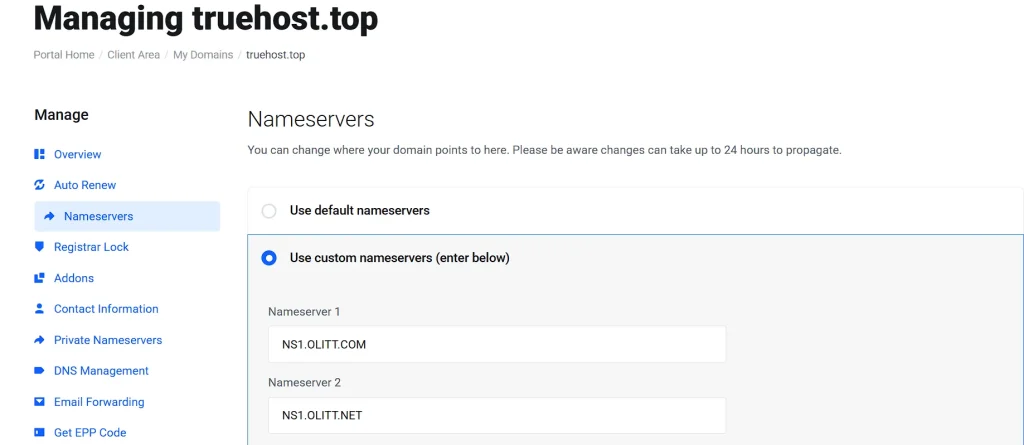
Log in to your domain registrar’s dashboard. Find the domain management section for your .co.tz domain.
Look for a link or tab labeled ‘Nameservers’ or ‘DNS Management.’ Replace whatever values are currently there with your host’s ns1 and ns2 entries. Save the changes when finished.
After saving, DNS propagation begins. That is the process by which your new settings spread across global servers.
Propagation can take anywhere from a few hours to 48 hours. Track progress for free at whatsmydns.net.
Enter your .co.tz domain and check for consistent results across multiple server locations. Once propagation shows green across the board, move on to the cPanel step.
How to Park Your .co.tz Domain in cPanel
Step 1: Finding the Right Feature in cPanel
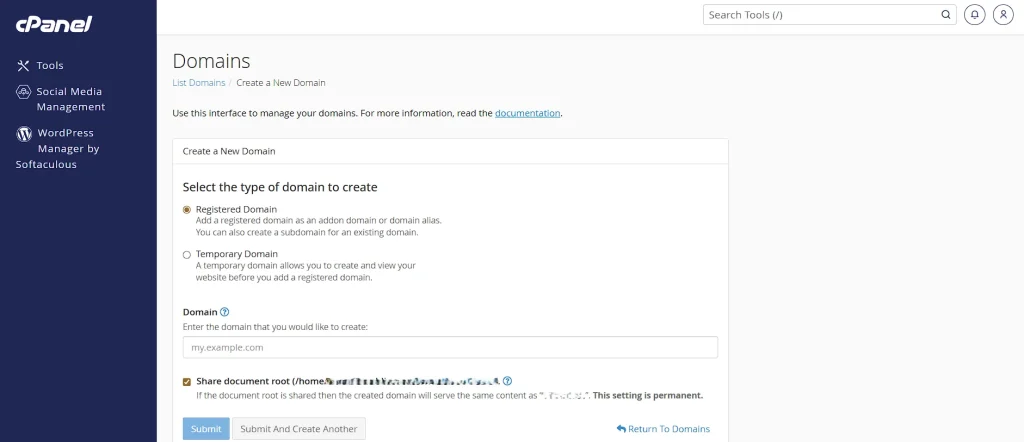
Here is where most users get tripped up. Older cPanel versions had a section clearly labeled ‘Parked Domains.’
Newer versions replaced that label with ‘Aliases.’ The feature works identically. Only the name changed.
Some Tanzanian shared hosts run slightly older WHM builds. If your cPanel still shows ‘Parked Domains,’ use that section.
If you see ‘Aliases,’ click that instead. Both paths lead to the same result.
Step 2: Add the .co.tz Domain as an Alias
Work through these steps in order. Make sure the nameserver update from the previous section is complete before starting.
- Log in to cPanel. Go to yourdomain.com/cpanel or use your hosting client portal.
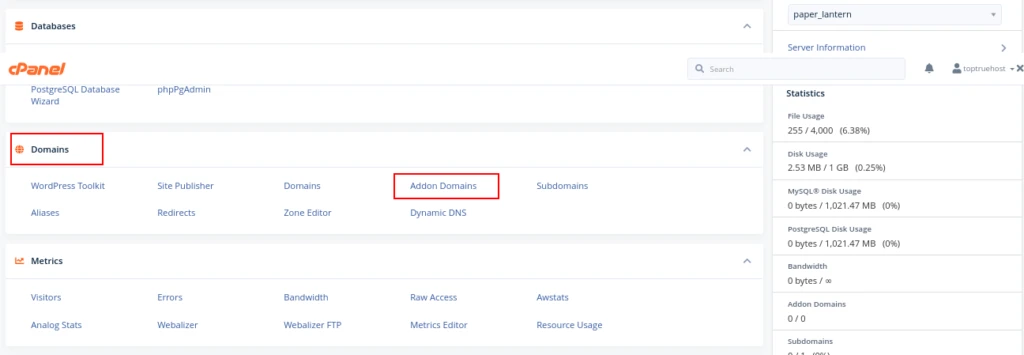
- Scroll to the ‘Domains’ section on the cPanel dashboard.
- Click ‘Aliases.’ On older cPanel builds, look for ‘Parked Domains’ instead.
- In the ‘Create a New Alias’ field, type your full .co.tz domain. Example: yourbusiness.co.tz.
- Click ‘Add Domain.’
- Look for a green success message confirming the domain was added.
- After propagation finishes, visit your .co.tz domain in a browser to confirm it works.
What cPanel Does Automatically When You Park a Domain
Once you click ‘Add Domain,’ cPanel handles several things behind the scenes.
It creates a DNS zone for the alias right away. It also automatically sets up a CNAME record for the www subdomain.
On most servers, cPanel will also attempt to install a free Let’s Encrypt SSL certificate for the alias.
That means your .co.tz alias should load over HTTPS without any extra steps on your end.
The parked domain shares the same public_html folder as your primary domain. No file uploads or duplicated content are needed.
Parked Domain vs. Addon Domain vs. Subdomain
These three domain types confuse many new cPanel users. Each one does something distinct.
A parked domain, called an alias in modern cPanel, mirrors your primary site exactly.
An addon domain, by contrast, hosts a completely separate website under the same cPanel account.
A subdomain is a section of your main domain, such as shop.yourbusiness.co.tz.
The table below summarizes the key differences.
| Domain Type | Same Content? | Separate Site? | Own Email? |
| Parked Domain (Alias) | Yes | No | Yes |
| Addon Domain | No | Yes | Yes |
| Subdomain | No | Yes (partial) | Yes |
Why Businesses Park .co.tz Domains
There are real, practical reasons to go through this process. Brand protection is the biggest one.
A competitor could register your business name under .com if you leave it available.
Parking both domains under one site closes that gap before anyone else can act on it.
Some users also type the wrong extension out of habit, and parking catches that traffic automatically.
Startups often park a .co.tz domain they plan to use for a future project. It holds the spot open without needing a live site behind it yet.
Can You Set Up Email on a Parked .co.tz Domain?
Yes, you can. This surprises many people who assume a parked domain handles only web traffic.
A parked alias in cPanel can carry its own email accounts. So [email protected] can work perfectly while your primary site runs on .com or any other domain.
After parking, go to ‘Email Accounts’ inside cPanel. Create a new account and select your .co.tz domain from the domain dropdown.
The mail will arrive inside the same cPanel account as your primary domain. That setup works well when one team manages everything.
A parked domain also does not count toward your unique website quota. Adding an email address to the alias does not affect your plan’s site limits.
Troubleshooting Common .co.tz Parking Errors in cPanel
I) “Domain Already Exists” Error
This error shows up for two main reasons. Either the domain was already added to cPanel under a different type, or the subdomain that cPanel tries to create already exists.
Go to the Domains section and look through your existing addon domains, subdomains, and aliases.
If your .co.tz domain appears anywhere on that list, remove it first. Then go back and add it as a fresh alias. That clears the conflict and lets the process complete without issues.
II) The Parked Domain Shows the Wrong Site or a Blank Page
Nine times out of ten, this traces back to nameservers. The .co.tz domain is still pointing to the wrong server.
Use whatsmydns.net to check whether your nameserver changes have fully propagated.
If propagation appears complete and the problem persists, go back into cPanel and confirm that the alias appears under ‘Aliases.’
If both check out, wait the full 48 hours before troubleshooting further.
III) SSL Certificate Not Issuing for the .co.tz Alias
Let’s Encrypt validates SSL by checking that your .co.tz domain’s A record resolves to your server’s IP address.
If propagation is not complete yet, that check fails, and the certificate request times out. Wait for full propagation first.
Then open ‘SSL/TLS Status’ inside cPanel and click ‘Run AutoSSL.’ That triggers a fresh certificate request for the alias.
If your host does not support AutoSSL, install an SSL certificate manually from the ‘SSL/TLS’ section in cPanel.
Parked Domain vs. Domain Redirect: Which One Should You Use?
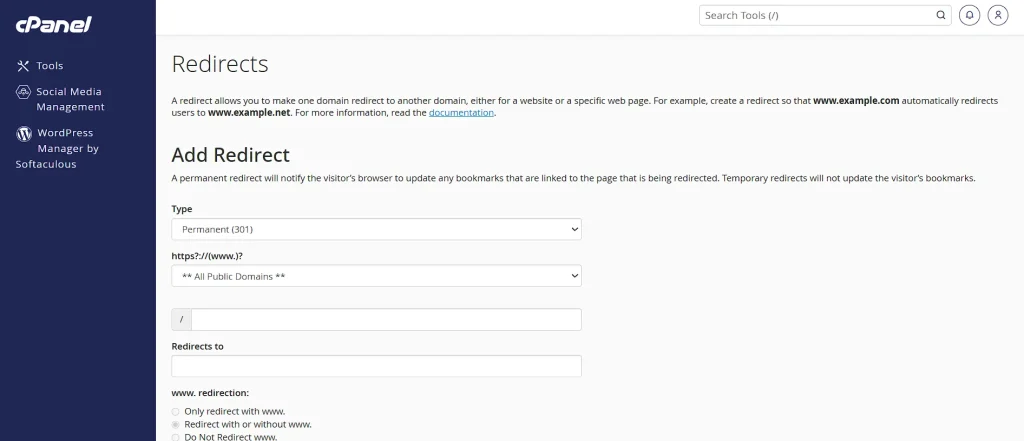
These two options are easy to confuse, so here is the clear distinction.
A parked domain, or alias, shows the same content as your primary site. The URL in the visitor’s address bar stays as the .co.tz address throughout the entire visit.
A redirect, on the other hand, sends visitors from the .co.tz address directly to your primary domain. The address bar changes to the primary domain after the redirect fires.
For brand protection and catching misdirected traffic, parking works well.
For long-term SEO, a 301 redirect is the stronger choice. Search engines treat a properly configured 301 redirect as passing authority from the .co.tz domain to your primary domain.
A parked domain can create duplicate content signals if you do not add a canonical tag.
If building search rankings on one domain matters to you, a 301 redirect is the better path. Set it up from the .co.tz address, pointing to your primary domain.
Frequently Asked Questions
Do I need a separate cPanel account to park a .co.tz domain?
No. The alias feature works inside your existing cPanel account. No additional hosting plan is needed.
Does a parked .co.tz domain affect my primary domain’s SEO?
Not significantly, provided you add a canonical tag on the primary domain. That tag tells search engines which version of the site carries authority.
How many domains can I park in cPanel?
That depends on your hosting plan. Most shared plans cap the number of parked and addon domains. Check your current limits under the ‘Statistics’ section inside cPanel.
What happens to the parked domain if I cancel my hosting?
The alias disappears from cPanel when the hosting ends. Your .co.tz registration remains active as long as you renew it with TCRA through your registrar.
Can I park a .co.tz domain on a server different from my primary domain?
Yes. Point the .co.tz nameservers to the server where you want the alias to live, then create the alias there. Both domains do not need to share the original plan, but they must share the same cPanel server.
Park Your .co.tz Domain Today
Your .co.tz domain is parked, and your site now has two working addresses.
The next logical move depends on your goal. If you care about search rankings on one domain, set up that 301 redirect from the .co.tz address to your primary domain.
If you want to catch email on the alias, create the account in cPanel now while everything is fresh. Either way, the hard part is behind you.