 Web HostingMost affordable shared hosting from TZS 9,100 per year
 Dedicated ServersExperience unmatched power and control with a physical server in Tanzania.
 WordPress HostingHigh-Speed, Tanzania-Optimized WordPress Hosting
 Windows HostingOptimized for Windows-based applications and websites
 cPanel HostingUser-friendly hosting powered by cPanel
 Email HostingProfessional Tanzanian email hosting for your .co.tz domain (Secure, reliable, and Swahili-supported)
 Reseller HostingLaunch your own hosting business with minimal technical requirements
 Affiliate ProgramEarn referral commissions by promoting our services
 DomainsFind and register available domain names in seconds
 Domain TransferMove your domain to us with zero downtime and full control
 .co.tzSecure the trusted .co.tz domain made for Tanzanian businesses.
 .tz DomainClaim the official .tz domain for national trust and recognition.
 .com DomainSecure the trusted .com domain for Tanzanian businesses.
 Supported Tlds (glTLDs and ccTLDs)Browse and register domain extensions from around the world
 Whois Lookup | Find Out Who Owns a DomainLook up domain ownership, expiry dates, and registrar information
 VPS
VPS VPS Hosting TanzaniaDedicated resources. Tanzanian performance. Full server control.
 Managed VPS TanzaniaNot a tech expert? Choose a managed Tanzania VPS.
 Website BuilderEasily build beautiful websites with drag-and-drop simplicity.
 Online ShopLaunch a professional e-commerce store without writing code.
 BlogFind latest business, marketing, and tutorials
 Contact UsContact Truehost TZ | 24/7 Web Hosting Support
Imagine waking up to find your website down again. Orders are stuck, your contact form isn’t working, and visitors are bouncing away. Even worse, when you send a support ticket, hours pass before anyone replies. Frustrating, right?
For many website owners in Tanzania, that’s usually the breaking point, hence the moment they realize it’s time to move on. Perhaps, to a new web hosting which is reliable, guaranteeing fast loading speeds, high uptime, and even quick customer care support when issues arise.
The good news is that switching to a better web host doesn’t have to be complicated or risky. With the right process, you can migrate your site without downtime, data loss, or technical chaos.
In this guide, I’ll highlight the six simple steps to transfer your web hosting safely and smoothly. So, whether you’re moving to Truehost or another provider, these steps will help you make the transition stress-free and get your website running.
How to Change Your Web Hosting Provider
You don’t have to tolerate slow site, security breaches, surprise charges, or ignorant customer care support by your hosting provider anymore. The action to take is simple! Move your website to a trusted and reliable hosting company like Truehost in the simple steps:
Step 1: Choose Your New Hosting Plan Before Cancelling the Old
Once you’ve found a reliable new host, the next step is choosing the right hosting plan for your website. Start by understanding what your site needs, including traffic levels, storage, and overall performance goals.
Then, based on the site’s needs, you can choose:
- Shared Hosting: Perfect if you’re just starting or running a small site. It’s affordable and easy to manage, giving you everything you need without technical hassle.
- VPS Hosting: A smart pick when your website starts growing. You’ll get more speed, better security, and control all without paying for a full server.
- Dedicated Hosting: Best if your site gets heavy traffic or needs strong performance. You’ll have the whole server to yourself, so everything runs faster and more reliably.
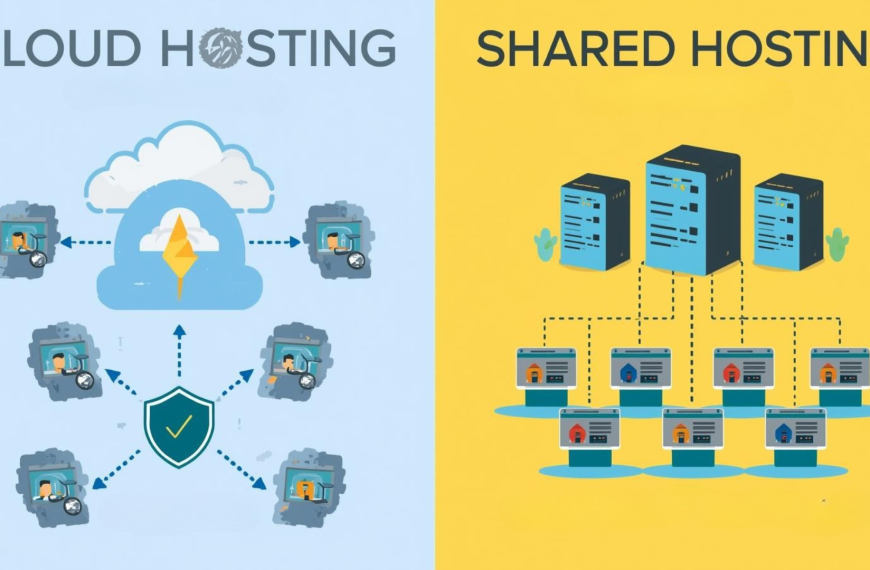
- Cloud Hosting: Great if you want flexibility. Your site can handle traffic spikes easily, and you only pay for the resources you use.
- Windows Hosting: Go for this if your website uses Microsoft tools like ASP.NET or MSSQL. It’s built to support those technologies smoothly.
Once you’ve picked and activated your plan, make sure everything is ready before you touch your old host. This keeps your website live and your data safe during the transfer.
Step 2: Back Up All Your Website Files, Databases & Emails
Before making any move, create a complete backup of your website. This ensures you don’t lose valuable data during the transfer. So, log in to your current hosting control panel, like cPanel or Plesk, and download everything that keeps your site running.
Here’s what to back up:
- Website files: Use FTP/SFTP or the file manager to download all your site content and folders.
- Databases: Export your database, usually MySQL, to keep your website’s data and structure intact.
- Emails: If your host manages your emails, back up account settings, messages, and mailboxes.
Once done, store these backups securely on your computer, external drive, or cloud storage. These files will be the foundation for setting up your website on the new host.
Step 3: Upload Your Backups to the New Host & Test Locally
Now that you have your backups, it’s time to move your website to the new host. Log in to your new hosting account and start restoring your files and database. Make sure the folder structure looks the same as it did on your previous host, as this helps avoid broken links or missing files later.
Also, most reliable hosts provide a temporary domain or staging link to help you preview your website privately. Thus, use this to open different pages, test forms and logins, and confirm that your images, videos, and downloads load properly.
Usually, testing everything at this stage ensures your site will perform smoothly once you update the DNS. In short, it’s your final check before the public sees your new setup.
Step 4: Create Email Accounts Before the DNS Switch
Email downtime can easily disrupt your business, so it’s best to prepare before updating your domain settings. Create all your existing email accounts with your new hosting provider first, using the same addresses you had before.
Once the accounts are set up, test them by sending and receiving a few emails to make sure everything works as expected. This quick step ensures you won’t lose any important messages when your website officially moves to the new host.
Step 5: Update Your Domain’s DNS and Wait for Propagation
This is the moment your website officially moves to its new home. Log in to your domain registrar and replace your old Name Servers with the ones provided by your new host. Once saved, the changes begin spreading across the internet in a process known as DNS propagation.
In Tanzania, this typically takes between 24 and 48 hours, though it can sometimes finish much faster. During this period, keep both your old and new hosting accounts active. Check your website and email regularly to make sure everything is loading correctly from the new server.
Step 6: Cancel the Old Hosting and Finalize the Move
Once your website and emails are fully working on the new host, it’s time to close your old account. But before you do, take a moment to double-check everything. Make sure your backups are complete and safely stored, no new emails are landing on the old server, and your domain renewal details are updated with the new host.
After confirming all is in order, you can safely cancel your old hosting plan. Then, congratulations! Your website is now fully migrated, running faster, and ready to grow with your new provider.
Frequently Asked Questions (FAQs)
1) Can I change my web hosting company?
Yes, you can change your web hosting company at any time. The process involves backing up your website files, databases, and emails, then transferring them to your new host before updating your domain’s DNS. So, as long as you follow the correct steps, your website can move smoothly without downtime or data loss.
2) Does changing hosting affect SEO?
Changing your web hosting provider does not directly affect SEO, as long as your website structure, URLs, and content remain the same. However, short downtime or slower loading speeds during migration can temporarily impact rankings. To avoid this, choose a reliable host with fast servers and minimal downtime, like Truehost, which is optimized for Tanzanian websites.
3) Will I lose my emails if I change hosting?
You won’t lose your emails if you migrate them correctly. Before switching, back up all your email accounts and set them up on the new host before updating DNS records. This ensures no messages are lost during the transition.
Conclusion
Transferring your website to a new hosting provider doesn’t have to be stressful. By following these six simple steps, which include choosing the right plan, backing up your files, testing carefully, and updating your DNS, you can move your site safely, without losing data or traffic. A smooth migration means better performance, stronger security, and room for your website to grow.
If you want a seamless transfer with expert local support, Truehost makes it easy. With fast servers, free migration help, and convenient payment options like M-Pesa and Tigo Pesa, you can focus on growing your website while Truehost handles the heavy lifting.
Start your move today and experience faster, more reliable hosting built for Tanzania.