 Web HostingMost affordable shared hosting from TZS 9,100 per year
 Dedicated ServersExperience unmatched power and control with a physical server in Tanzania.
 WordPress HostingHigh-Speed, Tanzania-Optimized WordPress Hosting
 Windows HostingOptimized for Windows-based applications and websites
 cPanel HostingUser-friendly hosting powered by cPanel
 Email HostingProfessional Tanzanian email hosting for your .co.tz domain (Secure, reliable, and Swahili-supported)
 Reseller HostingLaunch your own hosting business with minimal technical requirements
 Affiliate ProgramEarn referral commissions by promoting our services
 DomainsFind and register available domain names in seconds
 Domain TransferMove your domain to us with zero downtime and full control
 .co.tzSecure the trusted .co.tz domain made for Tanzanian businesses.
 .tz DomainClaim the official .tz domain for national trust and recognition.
 .com DomainSecure the trusted .com domain for Tanzanian businesses.
 Supported Tlds (glTLDs and ccTLDs)Browse and register domain extensions from around the world
 Whois Lookup | Find Out Who Owns a DomainLook up domain ownership, expiry dates, and registrar information
 VPS
VPS VPS Hosting TanzaniaDedicated resources. Tanzanian performance. Full server control.
 Managed VPS TanzaniaNot a tech expert? Choose a managed Tanzania VPS.
 Website BuilderEasily build beautiful websites with drag-and-drop simplicity.
 Online ShopLaunch a professional e-commerce store without writing code.
 BlogFind latest business, marketing, and tutorials
A WordPress site in Tanzania costs less than your weekly lunch. Setting up a one-click WordPress install takes less time than a lunch break.
Unfortunately, most people assume that you need technical coding skills to install WordPress. That myth ends with this guide.
By the time you finish reading this, your WordPress site will be live, SSL-secured, and ready for Tanzanian customers.
What Is a One-Click WordPress Install?
WordPress powers more than 40% of all websites on the internet. However, setting it up manually used to be a real headache.
You had to configure databases, upload files via FTP, and manually edit configuration files.
Today, one-click installers handle the entire process for you. They handle everything automatically, so you just fill in a short form and click a button.
Softaculous is a tool built directly into your cPanel account. Think of it as an app store for your hosting account.
It installs WordPress and over 400 other applications in minutes. You do not touch a single database or configuration file during the process.
Softaculous handles file uploads, database creation, and configuration of settings all by itself.
Other popular auto-installers include Installatron and Fantastico.
Most Tanzanian hosts that use cPanel include Softaculous by default. Check with your provider before you commit to a plan.
Step-by-Step: Install WordPress in One Click Using cPanel
After buying your domain and hosting plan, you need to connect the two together.
This connection happens through nameservers. Nameservers work like a postal address for your website.
They tell the internet exactly where your site lives. Your hosting provider sends you the nameserver details in a welcome email after you sign up.
You then enter those details inside your domain registrar’s control panel. For example, the nameservers might look like ns1.truehost.co.tz and ns2.truehost.co.tz.
After saving those changes, DNS propagation begins automatically. This process takes between 2 and 48 hours to complete globally.
During that window, your site may not load from every location. That is completely normal, so stay patient and do not panic.
Instead, take this time to install WordPress and set up basic pages as follows.
Step 1: Log in to your cPanel Dashboard
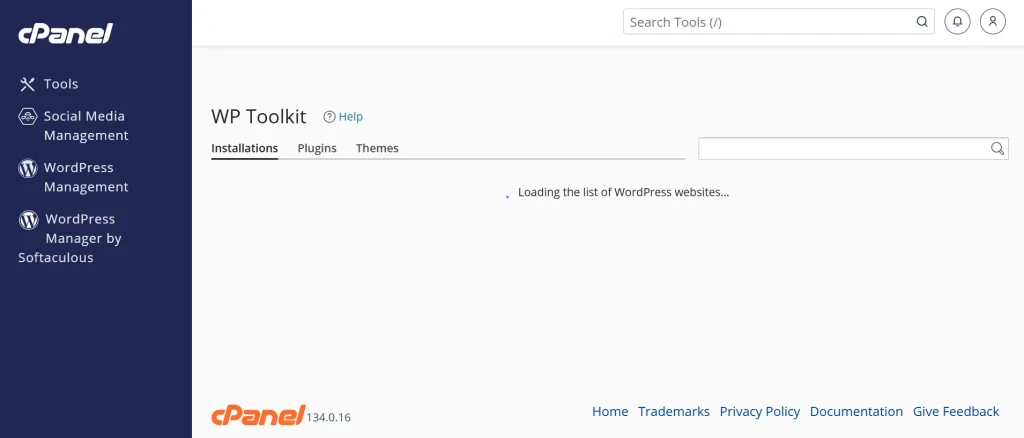
In your preferred browser, open the cPanel link your hosting provider sent after you purchased a hosting plan.
Use the login credentials provided in the welcome email to log in to your cPanel account as well.
This is the control panel you will use to manage your website, email accounts, databases, and all the files relating to your website.
Step 2: Open Softaculous Apps Installer
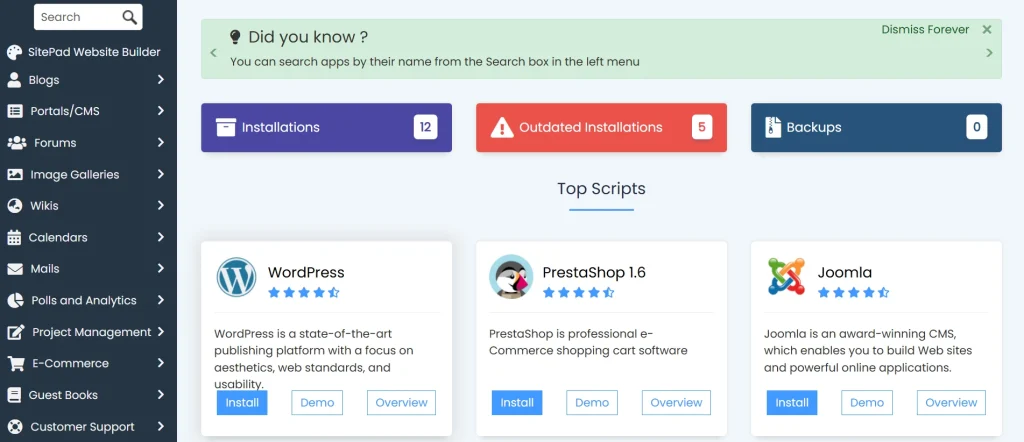
Inside your cPanel dashboard, scroll down until you see the Software section. Click the Softaculous Apps Installer icon to open it.
The Softaculous home page loads and shows you the most popular applications right at the top.
If you cannot find the icon, type Softaculous in the cPanel search bar near the top of the screen.
Some hosting providers label it differently, such as “App Installer” or “One-Click Installer”. Once you locate it, click to open the application.
Step 3: Select WordPress and Click Install
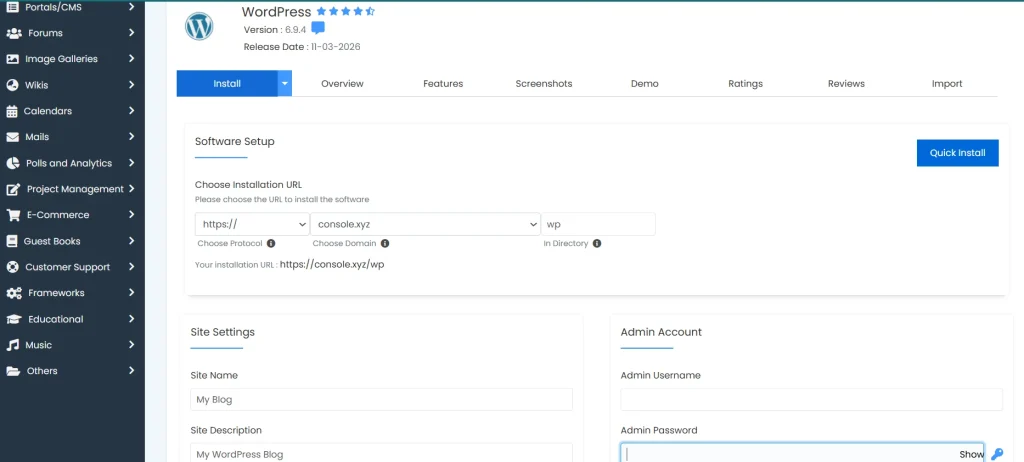
On the Softaculous home page, you will see WordPress listed prominently under Top Scripts.
Click the WordPress icon to open its installer page. Then click the blue Install button to proceed.
A small drop-down appears with two options: Quick Install and Custom Install. Select Quick Install if you are new to WordPress.
Custom Install gives you greater control over settings such as database names and table prefixes.
Either way, Softaculous manages the full process, including future upgrades, backups, cloning, and restores.
Step 4: Fill In Your WordPress Site Details
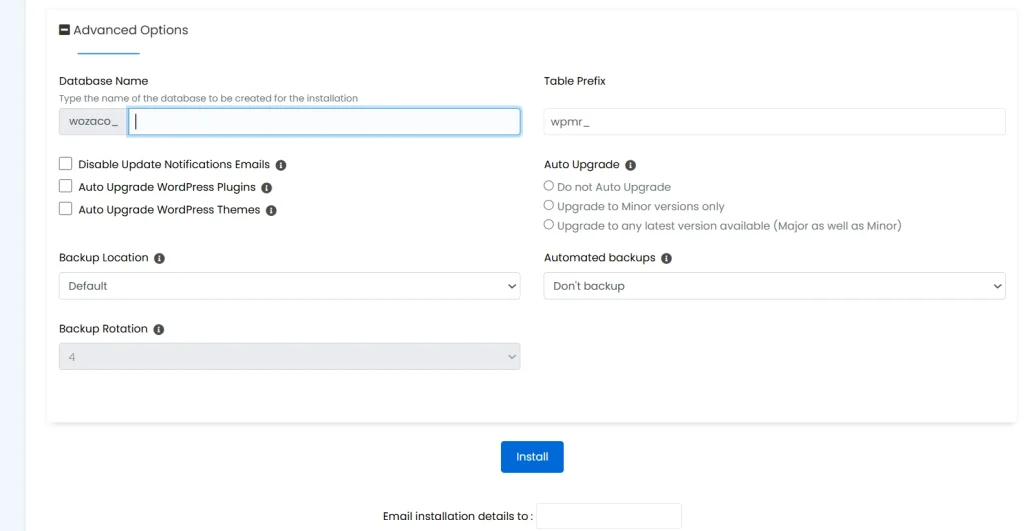
This step is the most important one. Fill in each field below carefully before moving on:
- Protocol: Choose https:// if your host provides free SSL. Choose http:// if SSL is not yet active on your account.
- Domain: Select your domain name from the dropdown menu.
- In Directory: Leave this blank to install WordPress at yourdomain.com. Type “blog” here to install it at yourdomain.com/blog.
- Site Name: Enter your website name, such as “Mama Pima Boutique” or “Tujifunze Online.”
- Site Description: Add a short tagline that describes what your site is about.
- Admin Username: Pick a unique username. Never use “admin” here. Hackers specifically target that username.
- Admin Password: Use a strong password with uppercase letters, numbers, and symbols mixed in.
- Admin Email: Enter an email address you check regularly. WordPress sends important notifications here.
- Table Prefix: Change the default wp_ to something random, like wp7tz_. This step improves your database security.
Step 5: Click Install and Access Your Dashboard
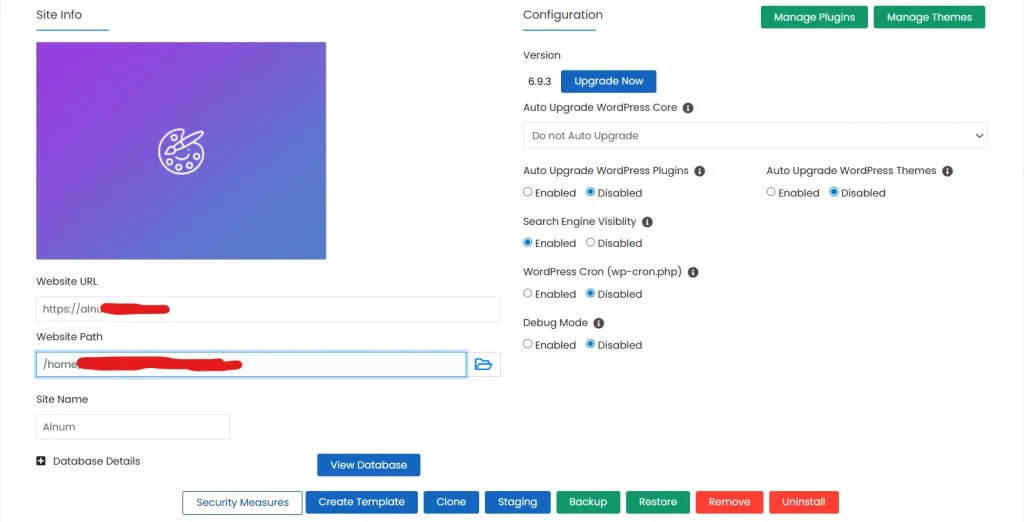
Scroll to the bottom of the form and click the Install button. A progress bar appears on your screen immediately after clicking.
The installation completes in under two minutes for most hosting accounts. Do not close the browser tab while the progress bar is still running.
After the process finishes, Softaculous shows you two important links. The first is your live website URL. The second is your WordPress admin URL, which ends in /wp-admin.
Click the admin link and log in with the username and password you set in the previous step.
Once you are inside, go to Settings > General. Confirm that both the WordPress Address and Site Address fields match your domain name exactly. Save changes if you make any corrections.
First Things to Do After Installing WordPress in Tanzania
Your WordPress site is now live. However, a few quick steps will keep it secure, fast, and ready for real visitors.
Install a Free SSL Certificate
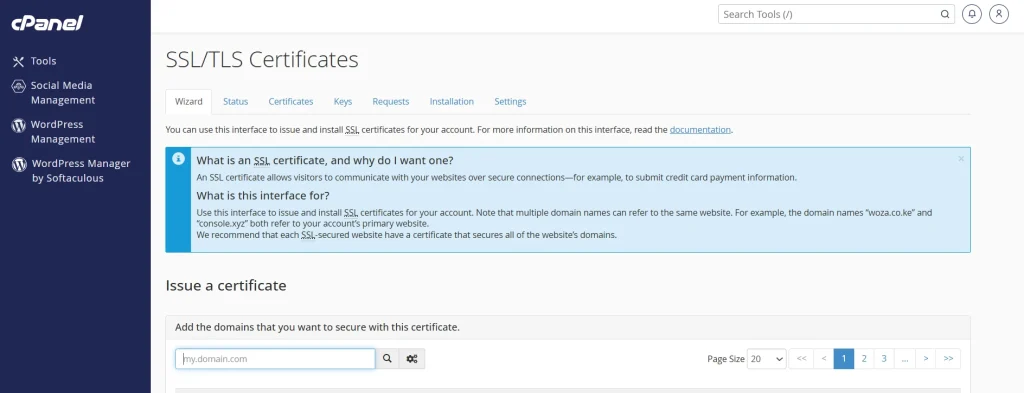
Most Tanzanian hosting plans include a free SSL certificate.
SSL switches your site from HTTP to HTTPS. This protects your visitors’ personal data and also signals trustworthiness to Google.
To activate SSL, head to your cPanel and look for an option labeled Let’s Encrypt or SSL/TLS Status.
Click Run AutoSSL or Install Certificate next to your domain name. After activation, return to your WordPress dashboard. Go to Settings > General.
Change both the WordPress Address and Site Address fields from http:// to https://. Click Save Changes.
From that point forward, your site operates securely with a padlock icon in the browser bar.
Set WordPress Language to Swahili (If Needed)
WordPress supports Kiswahili out of the box, which is great news for Tanzanian site owners.
To switch your dashboard language, go to Settings > General inside your WordPress admin area.
Find the Site Language dropdown and select Kiswahili from the list. Click Save Changes to apply.
Your entire dashboard now displays in Swahili. Most major plugins also offer Swahili translations, so your users will see familiar language throughout the site.
This step matters most if your primary audience speaks Swahili as their first language.
Install a Lightweight Theme and Essential Plugins
Your WordPress site needs a theme and a few plugins to function well from day one.
For themes, three free options work particularly well for Tanzanian websites: Astra, GeneratePress, and Kadence.
All three load fast, work well on mobile screens, and are easy to customize without coding.
To install a theme, go to Appearance > Themes > Add New in your dashboard.
Search for your chosen theme, click Install, and then click Activate.
For plugins, start with these four essentials:
- LiteSpeed Cache or W3 Total Cache: These plugins speed up your website for mobile users on slower data connections.
- Wordfence Security: This plugin protects your site from hackers, bots, and malware attacks.
- WPForms Lite: This adds a working contact form to your site in just a few clicks.
- Yoast SEO: This helps your pages appear higher in Google Tanzania search results.
Frequently Asked Questions
Which Tanzanian hosts support a one-click WordPress install?
Several local hosts in Tanzania support one-click WordPress installation through Softaculous or a built-in cPanel installer. Truehost Tanzania offers this feature with local support included in the plans.
How long does a WordPress installation take in Tanzania?
The Softaculous installer itself finishes the WordPress setup in under two minutes.
DNS propagation is a separate step that runs in the background. That process takes between 2 and 48 hours after you connect your domain to your hosting account.
Do I need coding skills to install WordPress in Tanzania?
No coding skills are needed at all. You can install WordPress from inside your cPanel account without writing a single line of code.
The entire process uses point-and-click tools designed specifically for non-technical users.
What is the cheapest one-click install WordPress hosting in Tanzania?
Truehost Webhosting Starter plans are available for around TZS 2,600 per month for shared hosting plans. They come with free SSL, one-click installer, and 30GB of SSD storage.
Conclusion
Your WordPress site does not need a developer. It does not need a big budget. It needs about 15 minutes and the steps above.
If you are still looking for a reliable host to get started, Truehost Tanzania checks every box. Local support, fast SSD storage, and one-click WordPress install are all included.