 Web HostingMost affordable shared hosting from TZS 9,100 per year
 Dedicated ServersExperience unmatched power and control with a physical server in Tanzania.
 WordPress HostingHigh-Speed, Tanzania-Optimized WordPress Hosting
 Windows HostingOptimized for Windows-based applications and websites
 cPanel HostingUser-friendly hosting powered by cPanel
 Email HostingProfessional Tanzanian email hosting for your .co.tz domain (Secure, reliable, and Swahili-supported)
 Reseller HostingLaunch your own hosting business with minimal technical requirements
 Affiliate ProgramEarn referral commissions by promoting our services
 DomainsFind and register available domain names in seconds
 Domain TransferMove your domain to us with zero downtime and full control
 .co.tzSecure the trusted .co.tz domain made for Tanzanian businesses.
 .tz DomainClaim the official .tz domain for national trust and recognition.
 .com DomainSecure the trusted .com domain for Tanzanian businesses.
 Supported Tlds (glTLDs and ccTLDs)Browse and register domain extensions from around the world
 Whois Lookup | Find Out Who Owns a DomainLook up domain ownership, expiry dates, and registrar information
 VPS
VPS VPS Hosting TanzaniaDedicated resources. Tanzanian performance. Full server control.
 Managed VPS TanzaniaNot a tech expert? Choose a managed Tanzania VPS.
 Website BuilderEasily build beautiful websites with drag-and-drop simplicity.
 Online ShopLaunch a professional e-commerce store without writing code.
 BlogFind latest business, marketing, and tutorials
Looking to set up an online store? There are many ways to do it, but WooCommerce still remains the best platform to build on. Here’s why:
- It’s free to get started. WooCommerce itself costs nothing to install.
- Since most websites already use WordPress, adding WooCommerce feels natural.
- Unlike Shopify or Squarespace, WooCommerce gives you full control over your data.
- It’s highly flexible. You can sell physical products, digital downloads, subscriptions, or even bookings.
- The plugin library is massive. There are thousands of free and paid extensions available.
- WordPress offers some of the best SEO tools, including Yoast.
- It scales with your business. Whether you have 10 products or 10,000, WooCommerce handles it.
- Payment options are wide. It supports PayPal, Stripe, bank transfers, and many local gateways.
- The community is large. Millions of developers and users worldwide support WooCommerce.
- Reporting is built in. You get sales reports, customer data, and stock tracking right from your dashboard.
This guide walks you through everything you need to set up a WooCommerce store in Tanzania today.
Prerequisites
Before you can start building your online store, you will need to set up some things.
- A domain name, either .co.tz for local trust or .com for broader reach across East Africa.
- A WordPress hosting plan that supports WooCommerce, with SSL included.
- A business registration with BRELA and a Tax Identification Number (TIN) from TRA. Legally, you cannot accept commercial payments in Tanzania without these. Visit brela.go.tz and tra.go.tz to get started.
Step 1: Install WordPress
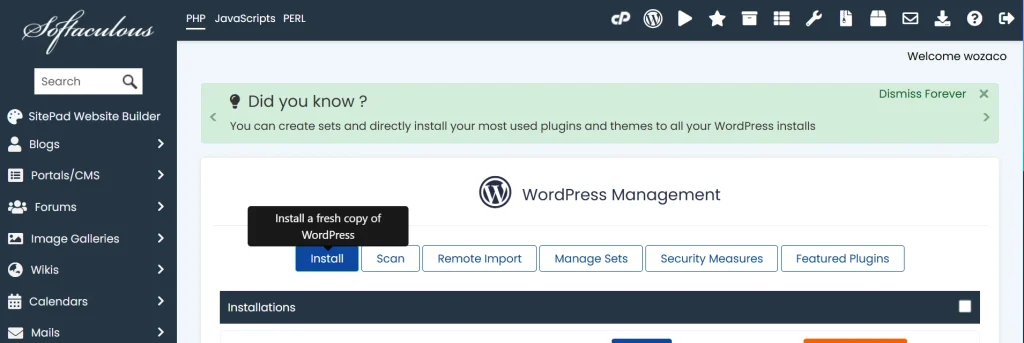
Log in to your hosting control panel (cPanel). Look for the WordPress installer icon, which most Tanzanian hosts label as Softaculous or WordPress Manager.
Click it, enter your site name, admin email, and a strong password. Click install. WordPress is live within two minutes.
Step 2: Installing the WooCommerce Plugin
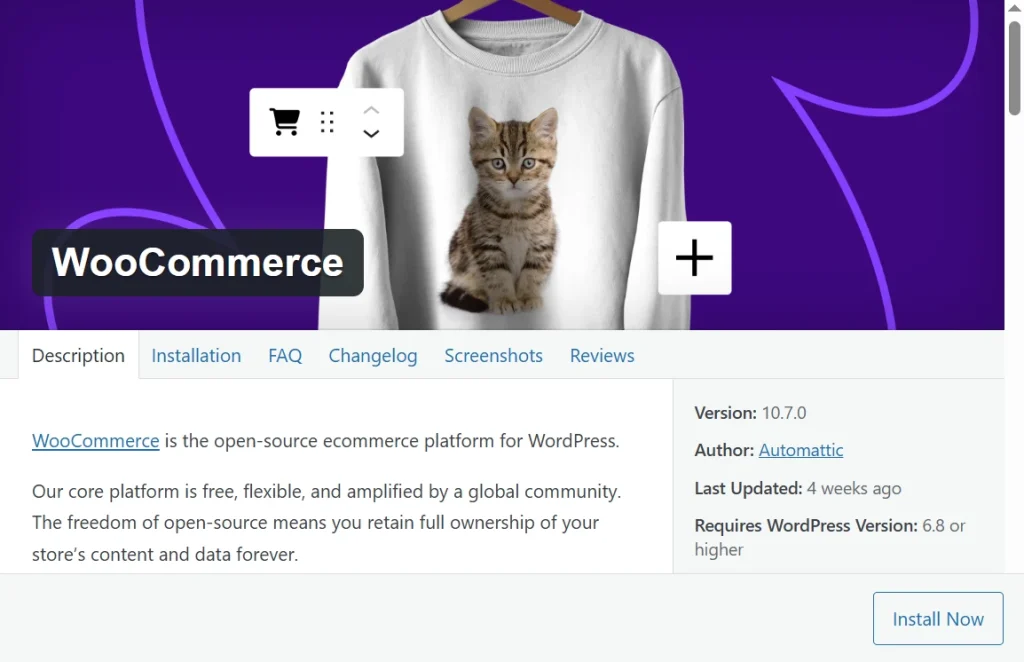
Inside your WordPress dashboard, go to Plugins > Add New. Type WooCommerce in the search bar.
Click Install Now next to the official WooCommerce plugin by Automattic. Once installed, click Activate.
WooCommerce will immediately launch a setup wizard. Work through it in this order.
- Store address: Enter your Tanzania address and set your country to Tanzania.
- Currency: Select Tanzanian Shilling (TZS). Do not skip this.
- Industry: Choose the category that best describes what you sell.
- Product types: Choose Physical products for tangible goods. Digital downloads are also free.
Step 3: Set Up Payment Gateways for Tanzania
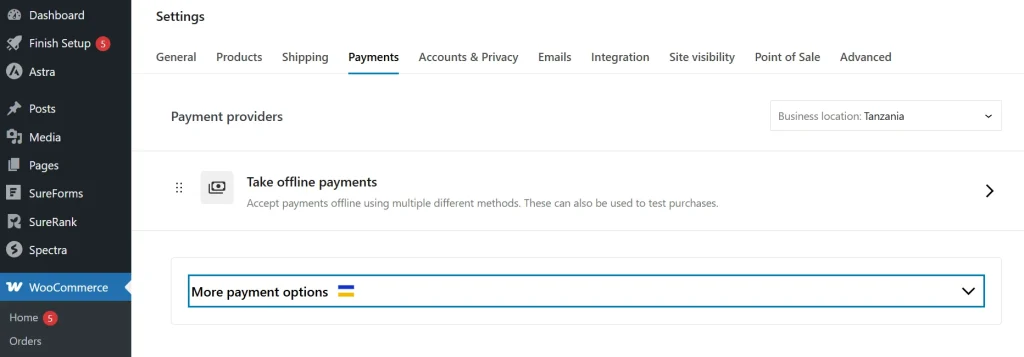
Tanzania has three major mobile money networks: M-Pesa (Vodacom), Tigo Pesa, and Airtel Money. Together, they cover virtually every Tanzanian buyer.
If your store cannot accept payments from at least two of these networks, you will lose sales every single day.
You have two main routes for integrating mobile money into your WooCommerce store.
Direct MNO integration: You apply separately to Vodacom, Tigo, and Airtel, set up individual accounts, and integrate each one.
This process takes 2 to 4 weeks per provider and gives you lower long-term transaction fees.
Payment aggregator: Services like ClickPesa and Pesapal connect all three networks in a single integration. Setup takes a few hours.
There is a small per-transaction fee, but you can start accepting payments from all three networks on the same day.
For a new store, Option B is the practical starting point. You can switch to direct integration later when your monthly transaction volume makes the fee difference worth the setup time.
Pesapal: Accept Cards and Mobile Money Together
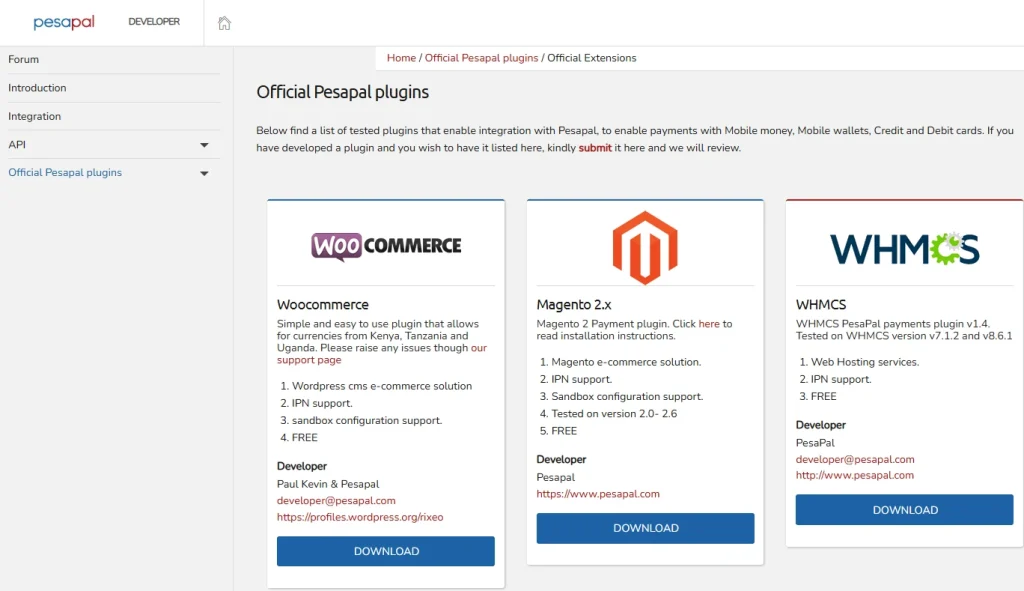
Pesapal is the most practical option for stores that want card payments alongside mobile money.
It covers M-Pesa, Tigo Pesa, Airtel Money, Visa, and Mastercard through one single integration.
Here is how to connect Pesapal to your WooCommerce store.
- Go to pesapal.com/business and sign up for a merchant account.
- Download the official Pesapal WooCommerce plugin from developer.pesapal.com/official-extensions.
- In WordPress, go to Plugins > Add New > Upload Plugin. Upload the file you downloaded and activate it.
- Go to WooCommerce > Settings > Payments > Pesapal and enter your API key and consumer secret from your Pesapal dashboard.
- Switch Pesapal to sandbox mode and place a test order. Confirm everything works, then disable sandbox mode to go live.
Step 4: Configure Shipping for Tanzania
WooCommerce lets you create geographic shipping zones with different rates for each.
For Tanzania, start with the following three zones from day one:
Zone 1: Dar es Salaam. Fastest and most affordable delivery. Most courier services prioritize this zone.
Zone 2: Major cities, including Arusha, Mwanza, Dodoma, and Zanzibar. Allow 2 to 4 business days and price accordingly.
Zone 3: Upcountry and rural areas. Longer delivery windows and higher courier costs apply here.
Real courier options that operate reliably across Tanzania include SGA, CoDirect, DHL Tanzania, G4S Courier Services, and Boxleo, which is good for urban same-day delivery.
Step 5: Add Your First Products
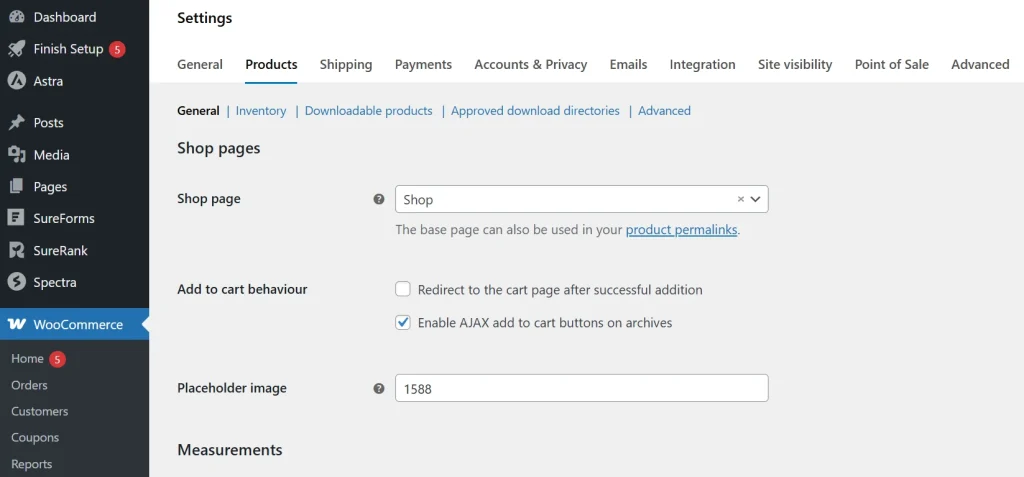
Go to Products > Add New in your WordPress dashboard. Fill in the product title, short description, full description, regular price in TZS, and sale price if applicable. Then add your product images.
Remember to compress every product image below 150KB before uploading. Since the majority of your shoppers are on mobile data, a heavy image means a slow page, and a slow page means a lost sale.
Use a free tool like ShortPixel or the Smush plugin to reduce image file sizes without losing quality.
Consider writing your product descriptions in both Swahili and English. Many Tanzanian shoppers search Google in Swahili.
A bilingual product listing captures both audiences and gives you more chances to rank in search results.
Step 6: Inventory and Stock Management
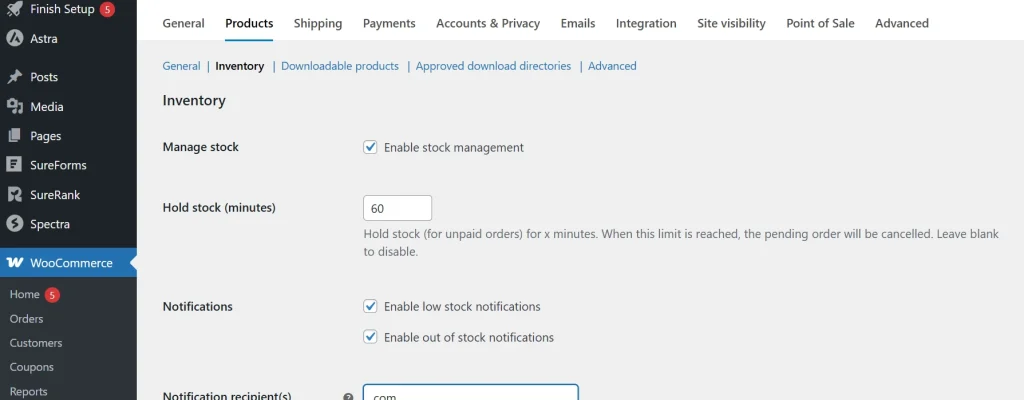
Turn on stock tracking right away. Go to WooCommerce > Settings > Products > Inventory and enable the stock management option.
Then set a low-stock email alert so you receive a notification when you are running low on any item.
For products that sell out, you have two practical options. You can hide them from the shop page entirely, or you can show them with a ‘Notify me when available’ button.
The second option keeps your customers engaged and gives you a built-in list of warm buyers to contact when stock returns. The Back In Stock Notifier plugin handles this for free.
Step 7: Configure Your Store for Mobile-First Shoppers
Since over 99% of internet users in Tanzania access the web on a smartphone, your theme choice matters more here than in almost any other market.
A theme that looks polished on a desktop but breaks on a 5-inch Android screen will cost you, real customers.
Test every theme on a physical Android phone, not just your browser’s developer tools. The experience on an actual device is very different.
Three free WooCommerce themes that load fast and render well on Tanzanian mobile connections are Storefront (the official WooCommerce theme), Astra, and OceanWP.
All three load under three seconds on a 4G connection when configured correctly.
Install a caching plugin. W3 Total Cache is free and effective. Enable page caching and browser caching at a minimum.
For a paid option, WP Rocket is the most user-friendly choice and requires almost no technical knowledge to configure.
Enable lazy loading for product images. This allows your page to start rendering before all images have fully downloaded.
Most modern WooCommerce themes support this feature natively. If yours does not, the A3 Lazy Load plugin adds it for free.
Step 8: Set Up Tax Settings for Tanzania
Tanzania’s standard VAT rate is 18%, administered by the Tanzania Revenue Authority (TRA).
If your business is VAT-registered, you are required to charge and remit VAT on all taxable sales.
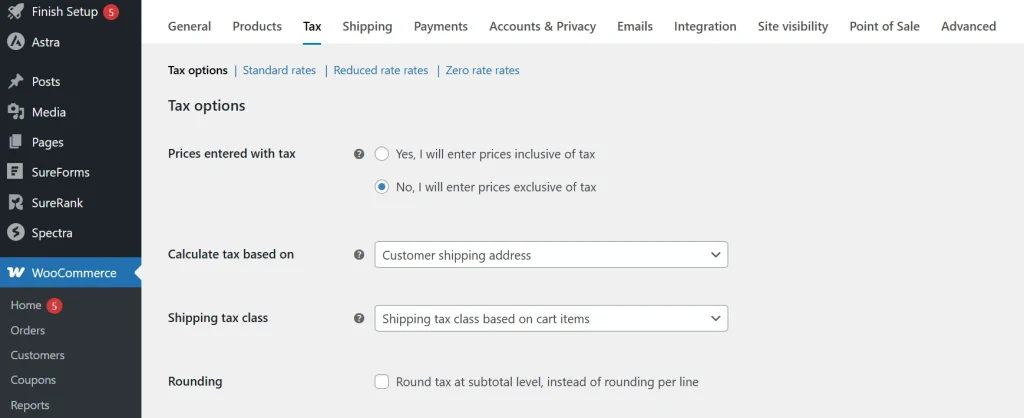
Here is how to configure VAT in WooCommerce. Go to WooCommerce > Settings > General and check the box that says Enable taxes. Save your changes.
Then go to WooCommerce > Settings > Tax > Standard Rates. Click Add a Row and enter 18% as the tax rate for Tanzania.
Step 9: Test Your Store and Launch
Before you tell a single person your store is live, run through this checklist from top to bottom.
- Place a real test order using the M-Pesa sandbox mode. Confirm the order status changes correctly in your WooCommerce dashboard. Check that the confirmation email reaches your inbox and not the spam folder.
- Test your checkout on at least three real devices: a low-end Android phone (representing most Tanzanian shoppers), a mid-range phone, and a laptop. Fix anything that looks broken or confusing.
- Confirm your SSL certificate is active. Look for the padlock icon in the browser address bar. A missing padlock signals to shoppers that your site is not secure. Most of them will leave immediately.
- Click through every link on your homepage, product pages, and checkout page. Broken links on a new store make a bad first impression that is hard to recover from.
- Check that your store currency is set to TZS and your timezone is Africa/Dar es Salaam. Both of these should have been set in Step 3. Verify them anyway.
Frequently Asked Questions
What payment methods work for a WooCommerce store in Tanzania?
M-Pesa (Vodacom), Tigo Pesa, and Airtel Money are the three mobile money networks you need to cover. Add card payment support via Pesapal or ClickPesa.
How much does it cost to start a WooCommerce store in Tanzania?
A realistic first-year budget ranges from TZS 120,000 to TZS 640,000. This covers hosting, a domain, SSL, and basic paid plugins. WooCommerce itself is free.
M-Pesa and Pesapal payment plugins are also free to install, though each charges a small per-transaction fee.
Which web hosting is best for WooCommerce in Tanzania?
Truehost Tanzania is the top local option for most new stores. We bill in TZS, and offer Tanzania-based customer support.
Can I accept M-Pesa payments on WooCommerce?
Yes, and it is one of the first things you should set up. Use the M-Pesa Open API WooCommerce plugin for a direct Vodacom integration.
You can also use Pesapal, which bundles M-Pesa alongside Tigo Pesa, Airtel Money, and card payments in a single plugin.
Do I need to register my business before opening an online store?
You should register with BRELA and obtain a TIN from TRA before accepting commercial payments. Operating without these puts you at legal and compliance risk.
Conclusion
Setting up a WooCommerce store in Tanzania takes a weekend, not a month.
You now have every step mapped out, from picking a .co.tz domain to connecting M-Pesa and filing the right tax details with TRA.
The stores that win in this market are not the flashiest ones. They are the ones that load fast on a phone, accept mobile money without friction, and treat customers like real people.
Start with what you have. Add features as your orders grow. Ready to start? Truehost managed cloud hosting offers the best solution for WooCommerce stores.